
Data Exchange: upload receipt data manually
Receipt data normally arrives automatically every day through the Cyreen SFTP server, see Exchanging data with Cyreen. If this data exchange is not set up, upload the file in CAP Explorer in the menu Data Exchange.
Data Exchange has two tabs:
| Tab | What for |
|---|---|
| Upload | upload receipt data as a CSV file |
| Download | download files that Cyreen provides for you |
Before you start
Section titled “Before you start”- You see the Data Exchange menu. For this, your role needs the permission to view Upload or Download, and the area must not be switched off for your company.
- The file has the format from the data layout: CSV with semicolon as separator.
- The file is 50 MB at most.
- The file name is unique. Ideally name the file as for the exchange over SFTP:
[YYYYMMDD]_Bon_Daten_[retailer name].
-
Open Data Exchange
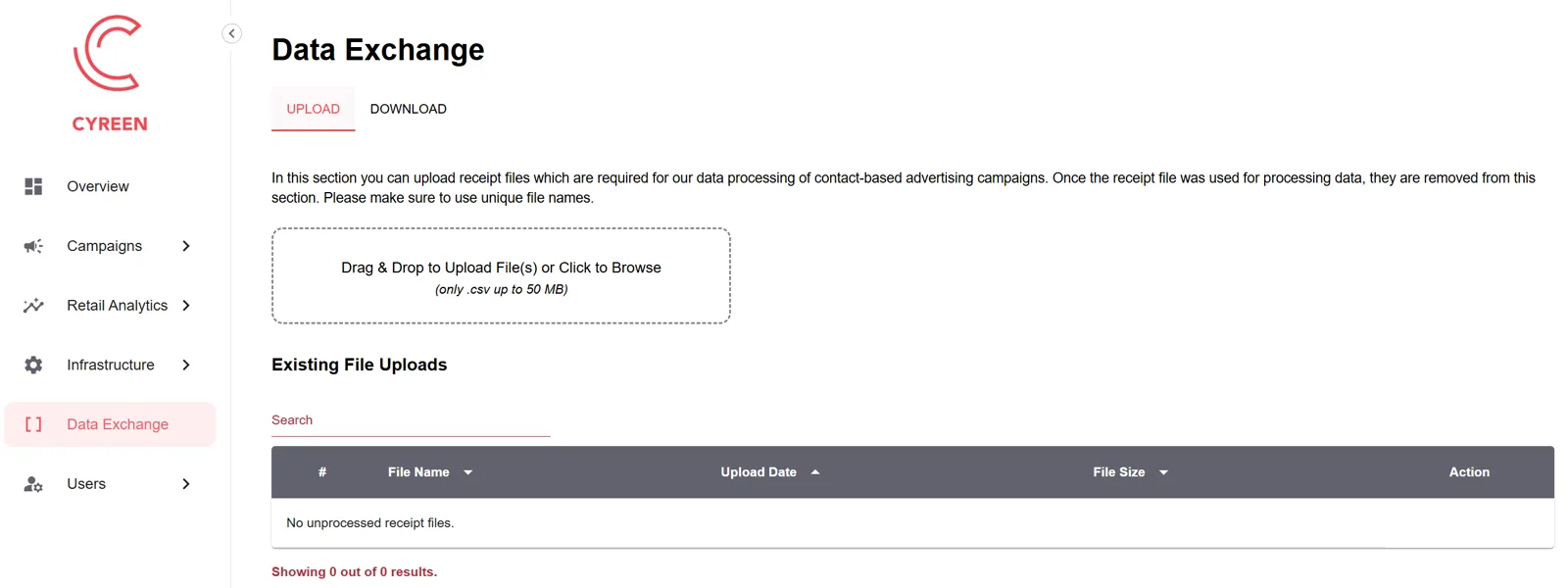
Click Data Exchange in the menu. The tab Upload is open.
-
Upload the file
Drag the CSV file into the field Drag & Drop to Upload File(s) or Click to Browse, or click it and choose the file.
-
Check the upload
The file appears under Existing File Uploads with name, date and size.
Result
Section titled “Result”The file is listed under Existing File Uploads until Cyreen has processed it. After that it disappears from the list. If it says No unprocessed receipt files., all uploaded files have been processed.
Help assistant
Answers from the Help Center, no AI