
The interface
What you see after logging in depends on the rights of your account. The two examples show the most important parts. There is no separate view for agencies yet.
Example: loop-based campaigns
Section titled “Example: loop-based campaigns”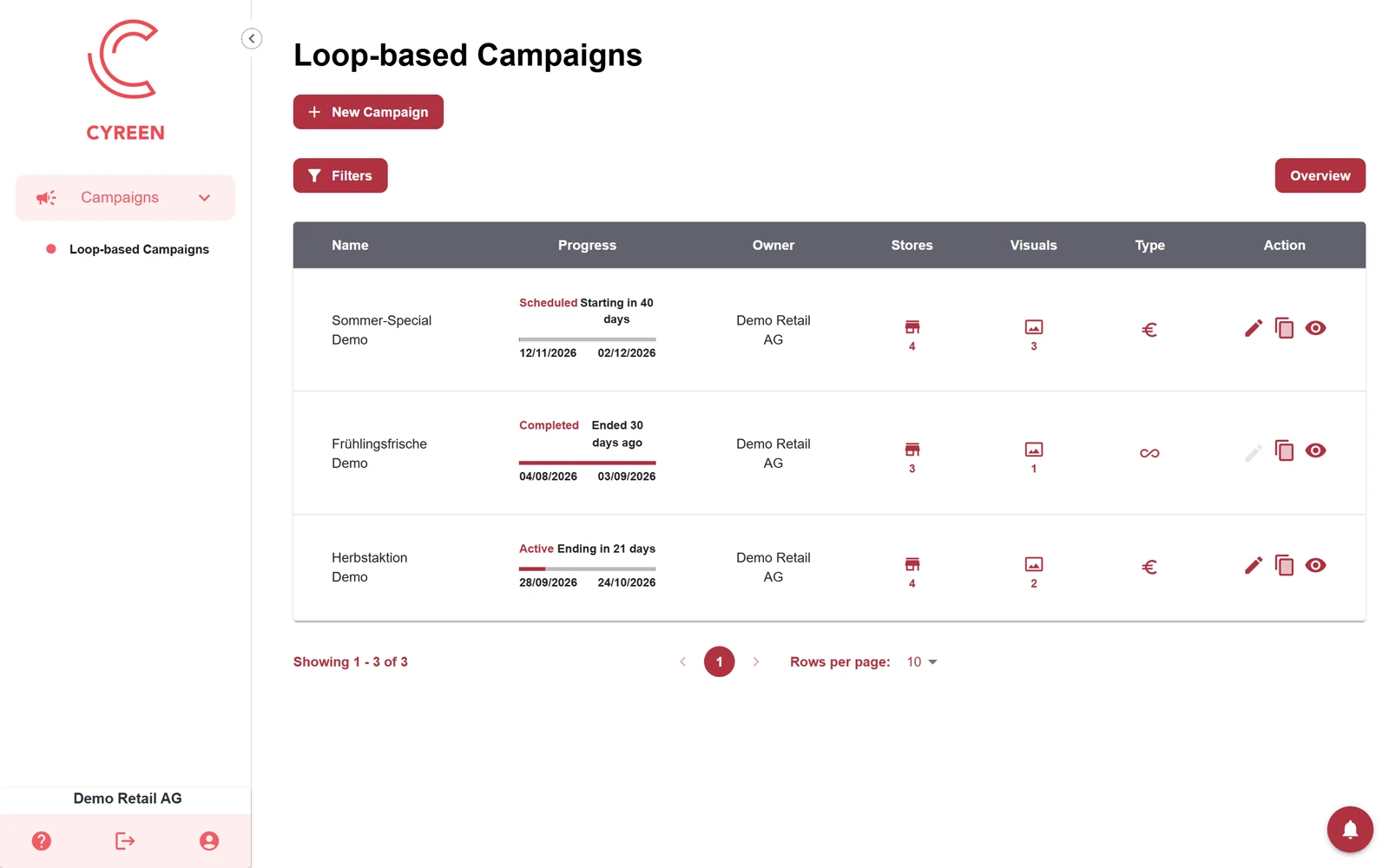
- Menu: Here you choose the area, for example Campaigns and below it Loop-based Campaigns. Which entries you see depends on the rights of your account.
- Content: The list of the chosen area with filters and actions. In the campaign list, each row shows progress, stores, visuals and type. € stands for Commercial, ∞ for Unlimited. New with the upcoming CAP Explorer release. With the icons on the far right, you edit, clone or open a campaign.
- Bottom left: the name of the company you are logged in with, and three icons:
- Question mark: When you point at it with the mouse, a window opens with the version of the CAP Explorer, Report Problem (opens an e-mail to support@cyreen.de), Help Center (currently still leads to the earlier help page) and the legal notice.
- Arrow: logs you out.
- Person: opens your account settings, for example to change your password.
- Notifications: news and notes from Cyreen.
Example: contact-based campaigns
Section titled “Example: contact-based campaigns”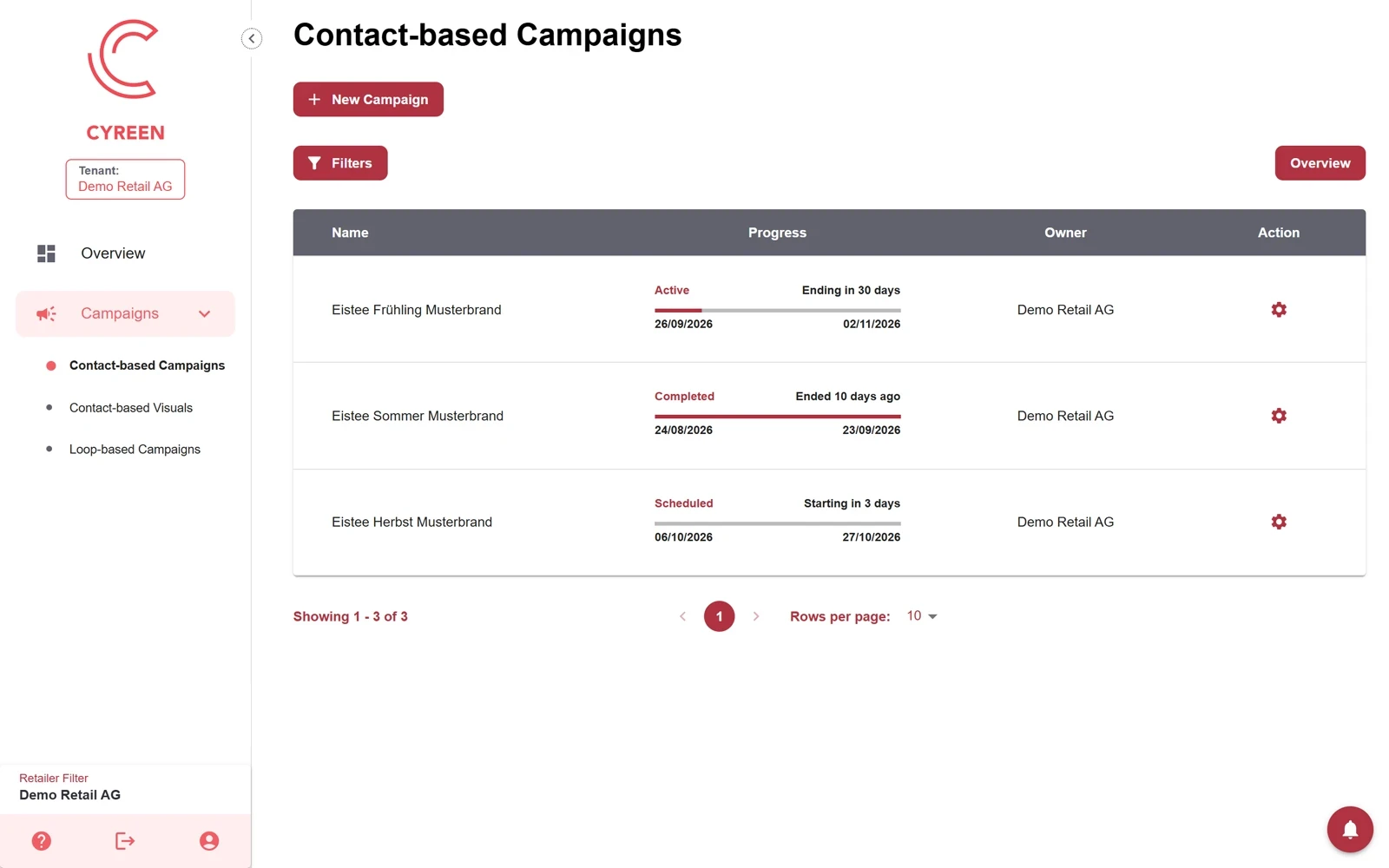
- Tenant: The tenant you are logged in with, for example Cyreen GmbH. New with the upcoming CAP Explorer release.
- Menu: Under Campaigns you open Contact-based Campaigns, Contact-based Visuals and Loop-based Campaigns. Which entries you see depends on the rights of your account.
- Content: The list of the chosen area with New Campaign, filters and actions. Each row shows name, progress with status (Active, Completed, Scheduled) and owner (Owner). The gear icon in the Action column opens a menu with Analytics products, Marketing activities, Share and Edit. A check mark next to Analytics products or Marketing activities shows that entries already exist for it. New with the upcoming CAP Explorer release.
- Bottom left: the Retailer Filter and below it the three icons as above. The Retailer Filter lists the retailers. With it you choose a retail chain. After that, the whole CAP Explorer only shows its information, for example lists and dashboard data. Do not confuse it with the Retailer field in the filter bar of the store list under Infrastructure, which only users of Cyreen and of a tenant see (new with the upcoming CAP Explorer release), see Modules in the CAP Explorer.
- Notifications: news and notes from Cyreen.
Was this helpful? Open the contact form
Help assistant
Answers from the Help Center, no AI