
Open the dashboards
You open the dashboards of a contact-based campaign in the Contact-based Campaigns campaign list, in the Reports column. New with the upcoming CAP Explorer release. Until then, there are the separate Impressions and Performance columns instead. The Impressions dashboard appears automatically, the Performance dashboard you request.
- Only the Performance dashboard is requested. The Impressions dashboard appears by itself and is already Available here.
- Add Products: the campaign has no analytics products yet. You add them.
- Request: you can request it. After the click, «Report successfully requested.» appears.
- Requested: Cyreen prepares the dashboard. From now on, analytics products and marketing activities can no longer be changed.
- Available: the dashboard is ready. The Full Report button then replaces the two separate buttons.
Before you start
Section titled “Before you start”- Analytics products are assigned to the campaign, see Add analytics products.
- When each dashboard is ready is described in Reports at a glance.
-
Check the status
Open Contact-based Campaigns. The status is shown under the Performance button in the Reports column:
Status What to do Add Products First add analytics products Request Request it (step 2) Requested Wait, Cyreen evaluates and checks (step 3) Available Open it (step 4) No access The buttons are grayed out because permissions are missing. Ask your administrator For scheduled campaigns (Scheduled), the Performance button does not exist yet. The button only appears if your account has the relevant permission for it. If access is missing through the role or through store-based access rules, it is not shown.
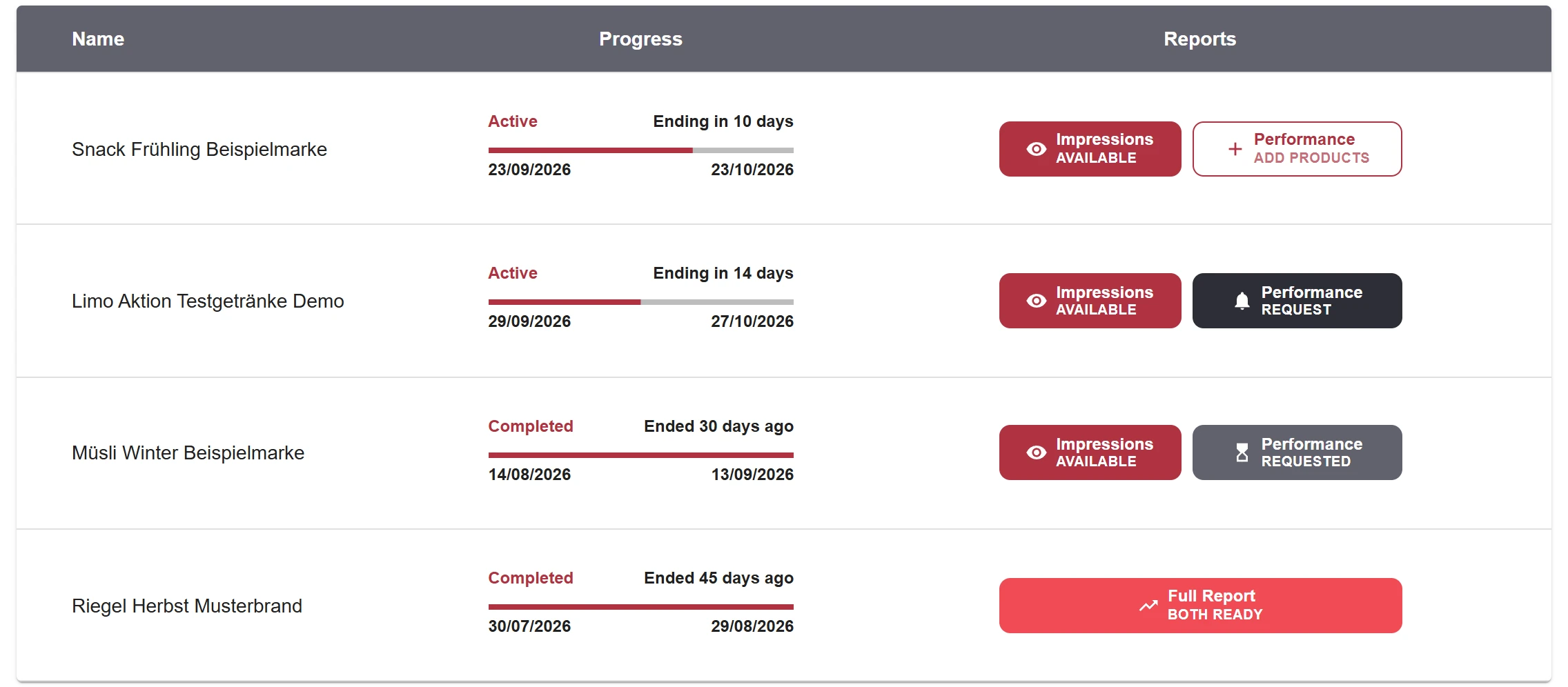
The four Performance states in the Reports column, one campaign each. -
Request
Click Performance with the status Request, if your account has the relevant permission for it. The message «Report successfully requested.» then appears.

Request state: you can request. 
-
Requested: Cyreen evaluates and checks
The status changes to Requested. In this step, Cyreen evaluates the data and a Cyreen expert checks it. Analytics products and marketing activities can no longer be changed. You do not need to do anything.

Requested state: the data is being evaluated and checked. -
Available: open the dashboard
After that, Cyreen switches it to Available. One click on the button opens the dashboard. When both dashboards are ready, the Full Report button replaces the two individual buttons. What the dashboards show is described in Understanding the dashboards.

Both dashboards are ready: Full Report opens them.
Problems?
Section titled “Problems?”I do not see a Request button. Whether you can request it yourself depends on who created the campaign. If you were invited to a campaign, the party that created it requests the dashboard.
My analysis groups are wrong, but the dashboard has already been requested. See Frequently asked questions.
Help assistant
Answers from the Help Center, no AI