
Add marketing activities (optional)
With marketing activities, you assign promotions such as discounts, second placements or events to a campaign. They are optional.
What marketing activities are used for
Section titled “What marketing activities are used for”Cyreen uses the marketing activities for the Premium Report and Deep Dive Insights. The evaluation separates products with and without the activity, see How the evaluation works. This way the impact of a promotion can be separated from the impact of the visual. In the dashboard you filter by Activity Type for this. Which reports are available is described in Reports at a glance.
How the evaluation works
Section titled “How the evaluation works”Marketing activities are assigned per product (GTIN). In the evaluation, only the products assigned to the activity count as «with activity», in the weeks and stores of the activity. Other products of the same analysis group count as «without activity».
Several activities in the same analysis group and week, for example a discount and a second placement, are evaluated separately.
So assign every product that is really part of the activity, and only those products.
Before you start
Section titled “Before you start”- The campaign has analytics products, see Add analytics products.
- Have the calendar weeks, products, stores and kind of activity ready.
- Check the details carefully. After you have requested the Performance dashboard, marketing activities can no longer be changed, except in individual cases through the contact form.
-
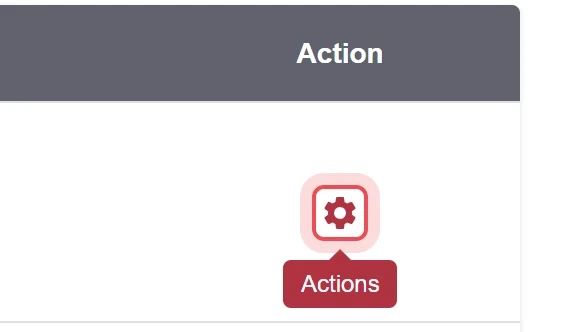
Open the gear menu
Click the gear icon in the Action column of the campaign. New with the upcoming CAP Explorer release.
-
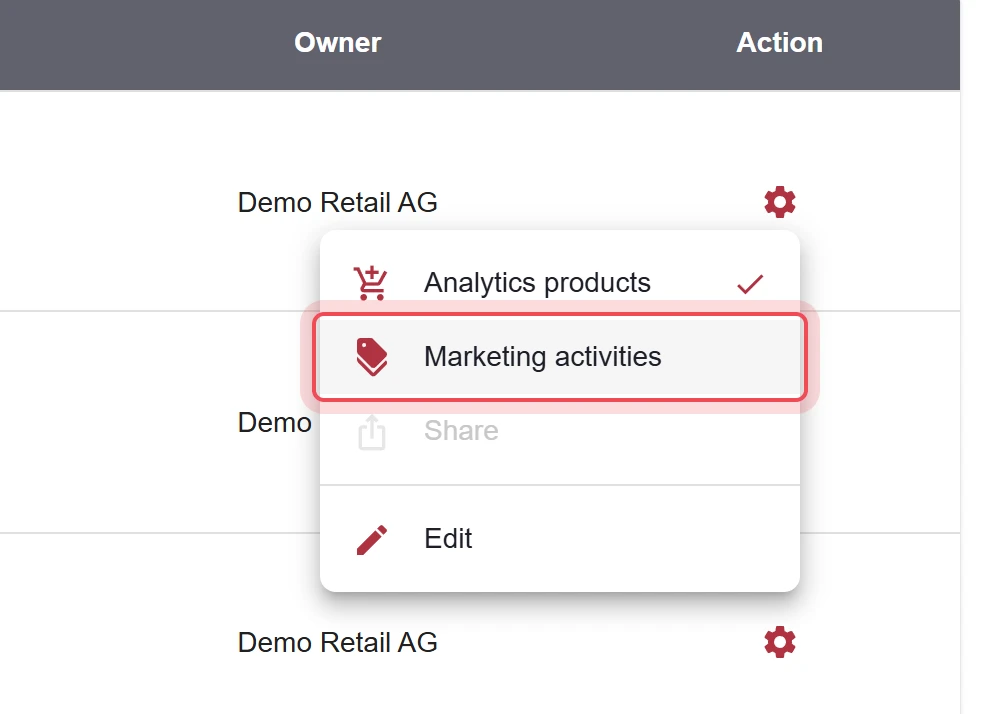
Choose Marketing activities
In the menu, choose Marketing activities. A check mark next to the entry shows that activities already exist for the campaign. New with the upcoming CAP Explorer release.
-
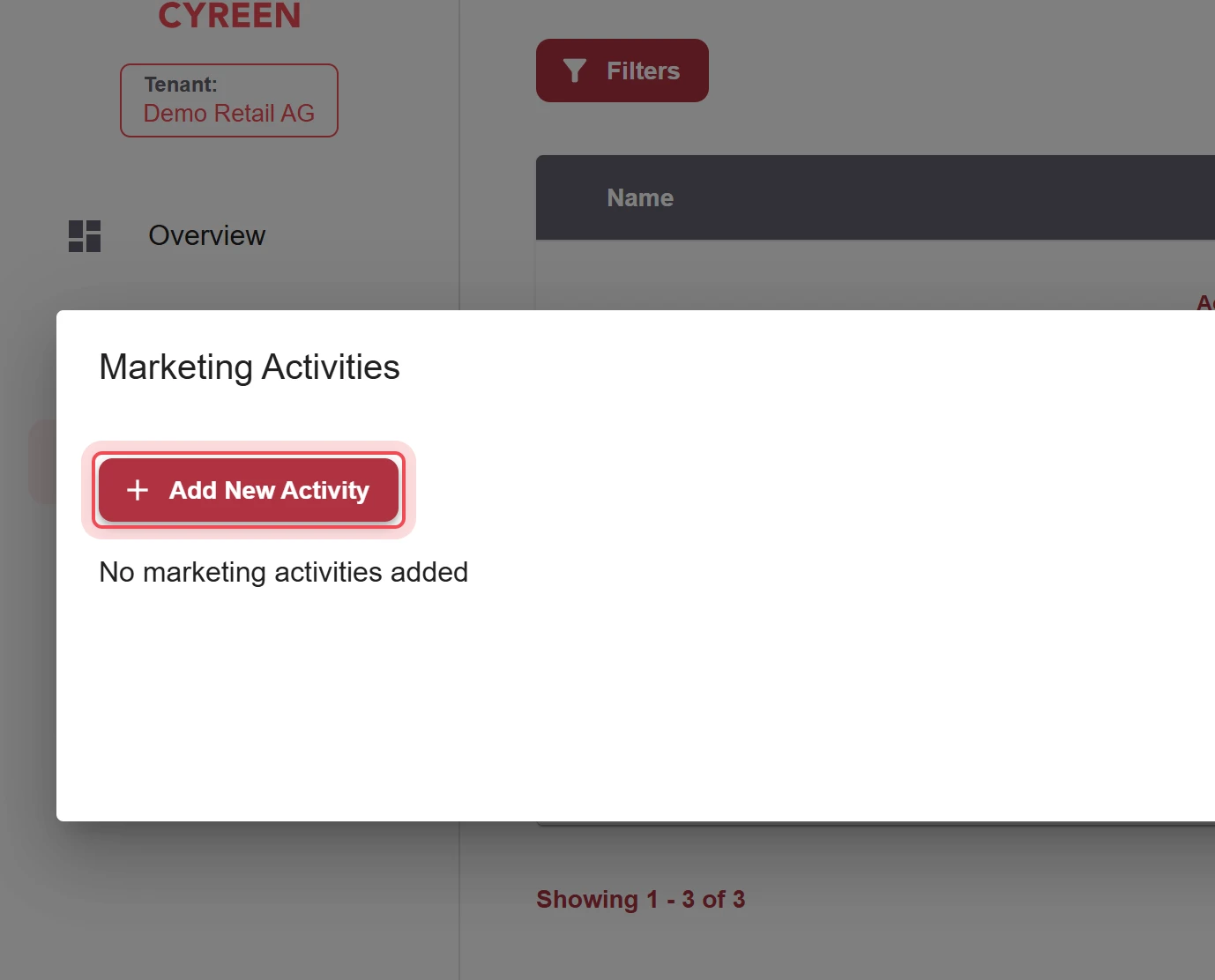
Start a new activity
Click Add New Activity.
-
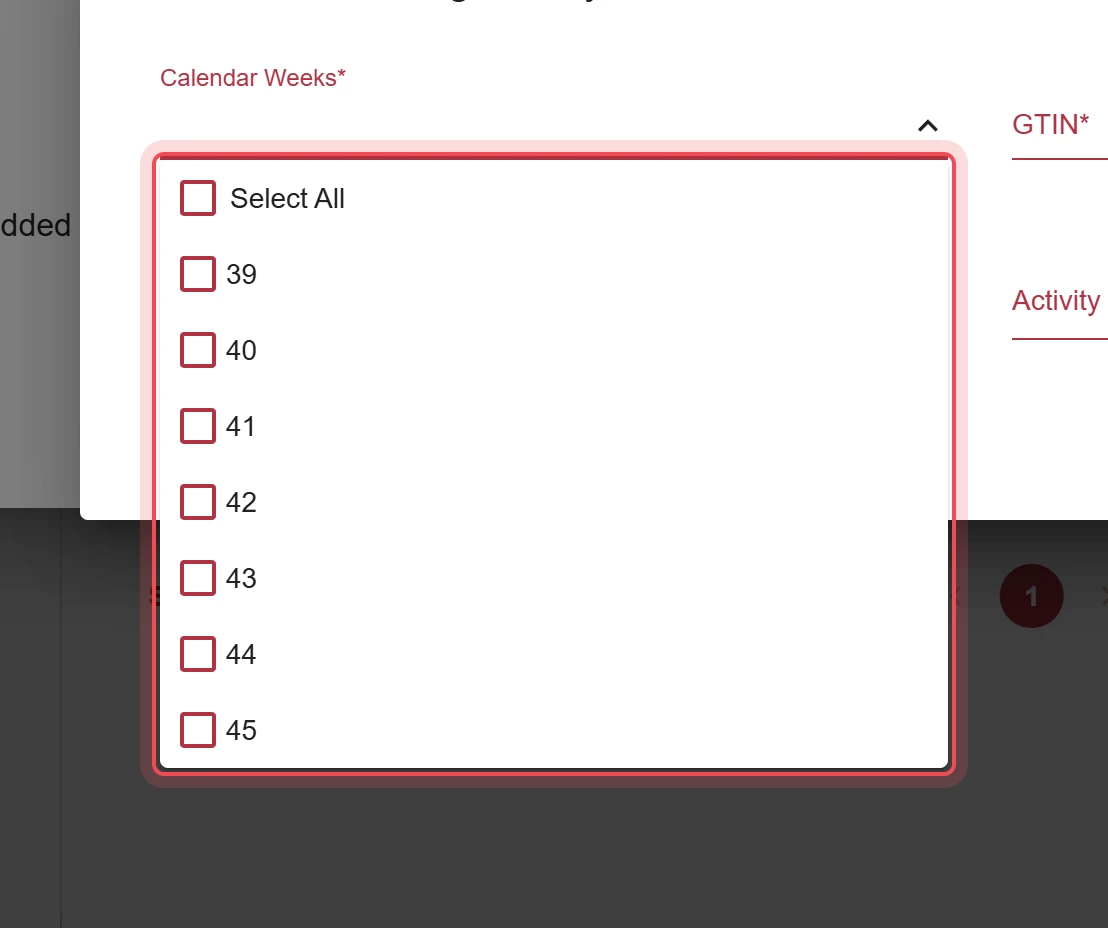
Choose calendar weeks
Open the Calendar Weeks field and choose the weeks of the activity, for example with Select All.
-
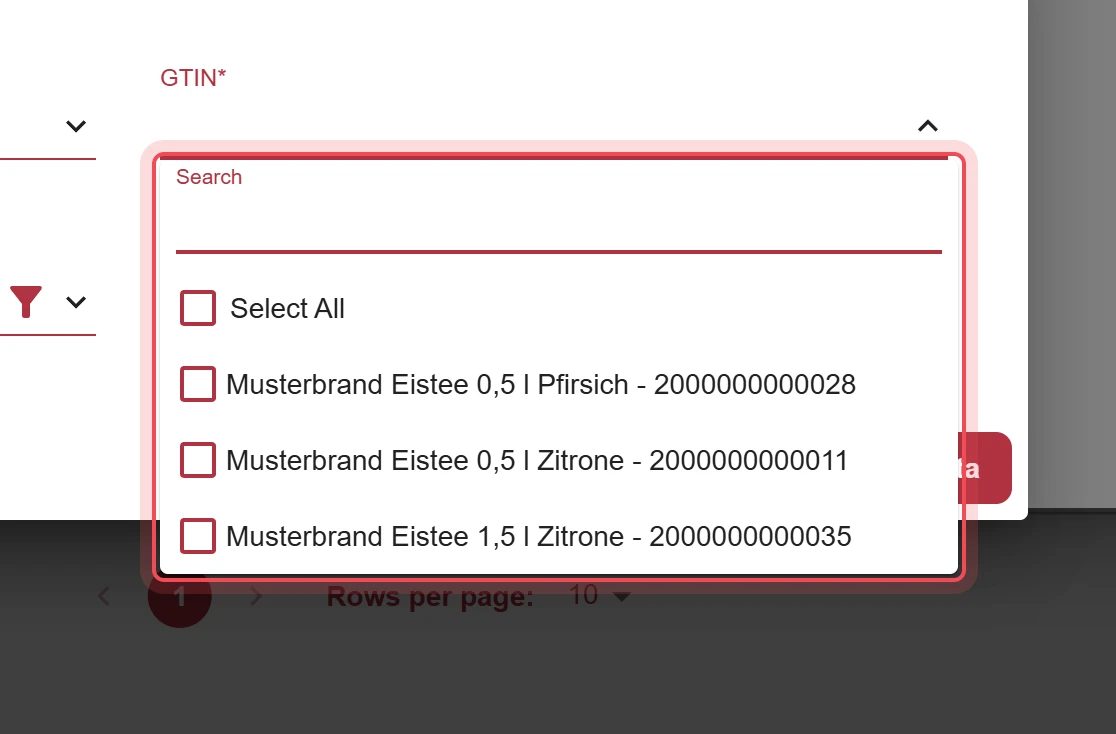
Choose products
In the GTIN field, choose the products the activity refers to. You can choose from your analytics products.
-
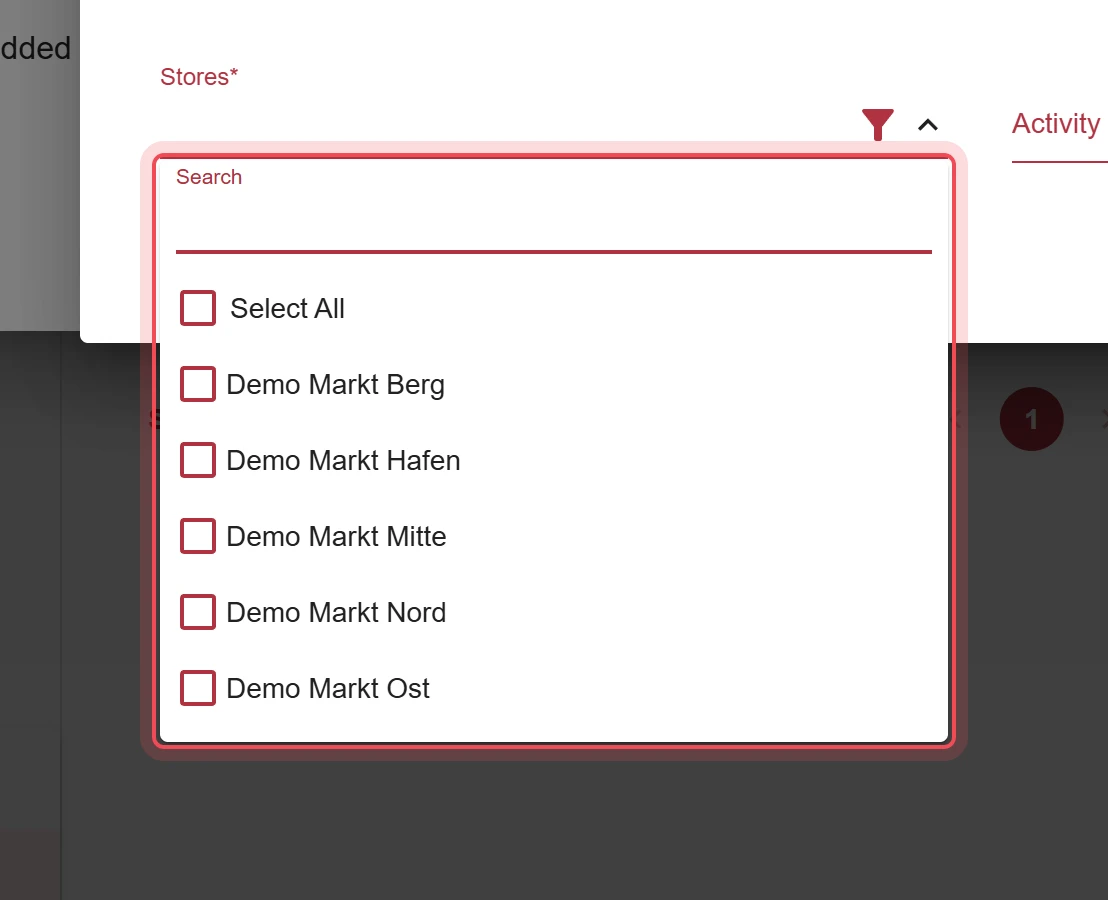
Choose stores
In the Stores field, choose the stores where the activity takes place.
-
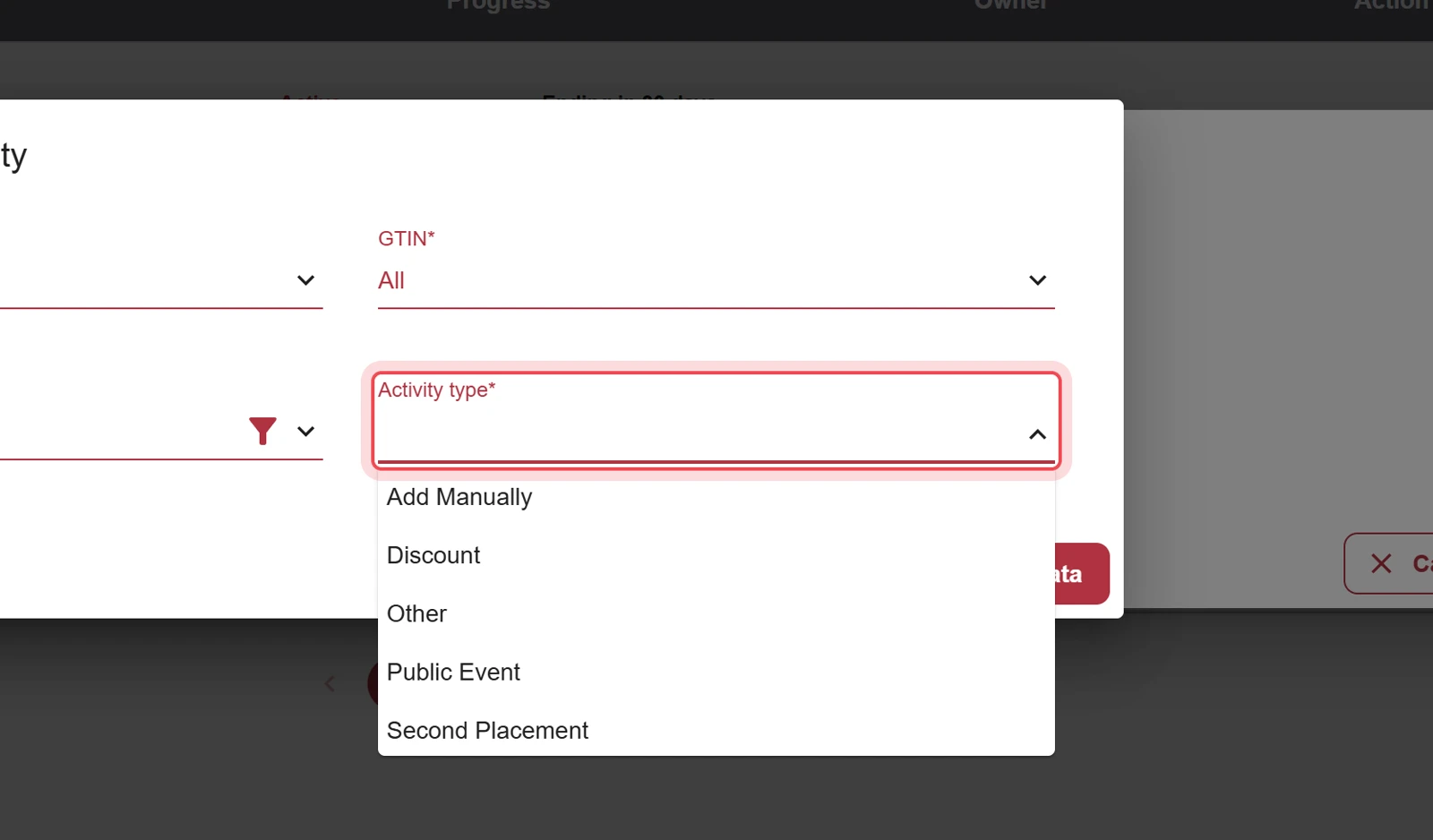
Choose the activity type
In the Activity type field, choose the kind of activity: Discount, Second Placement, Public Event or Other. With Add Manually, you give it your own name.
-
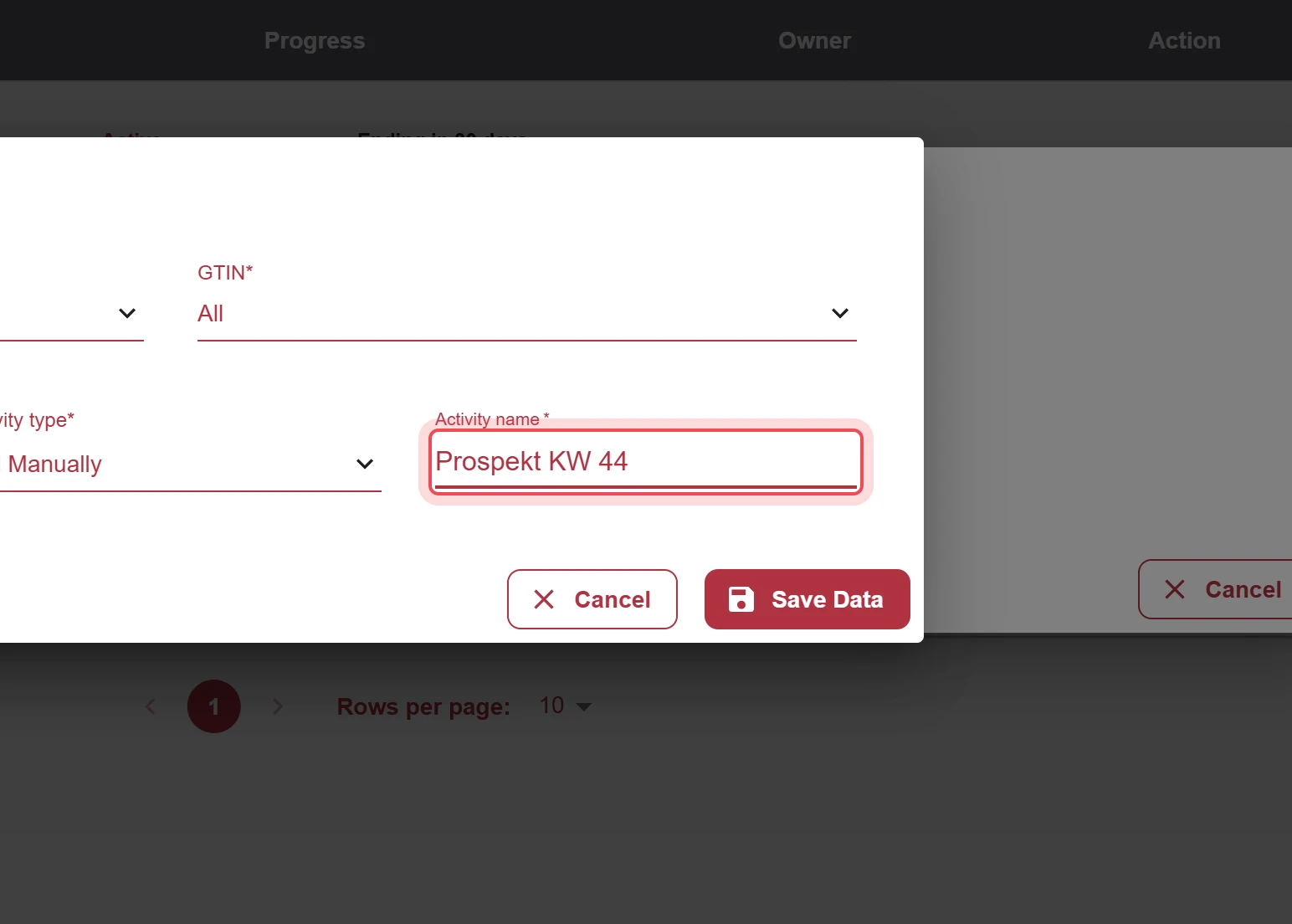
Enter a name (only with Add Manually)
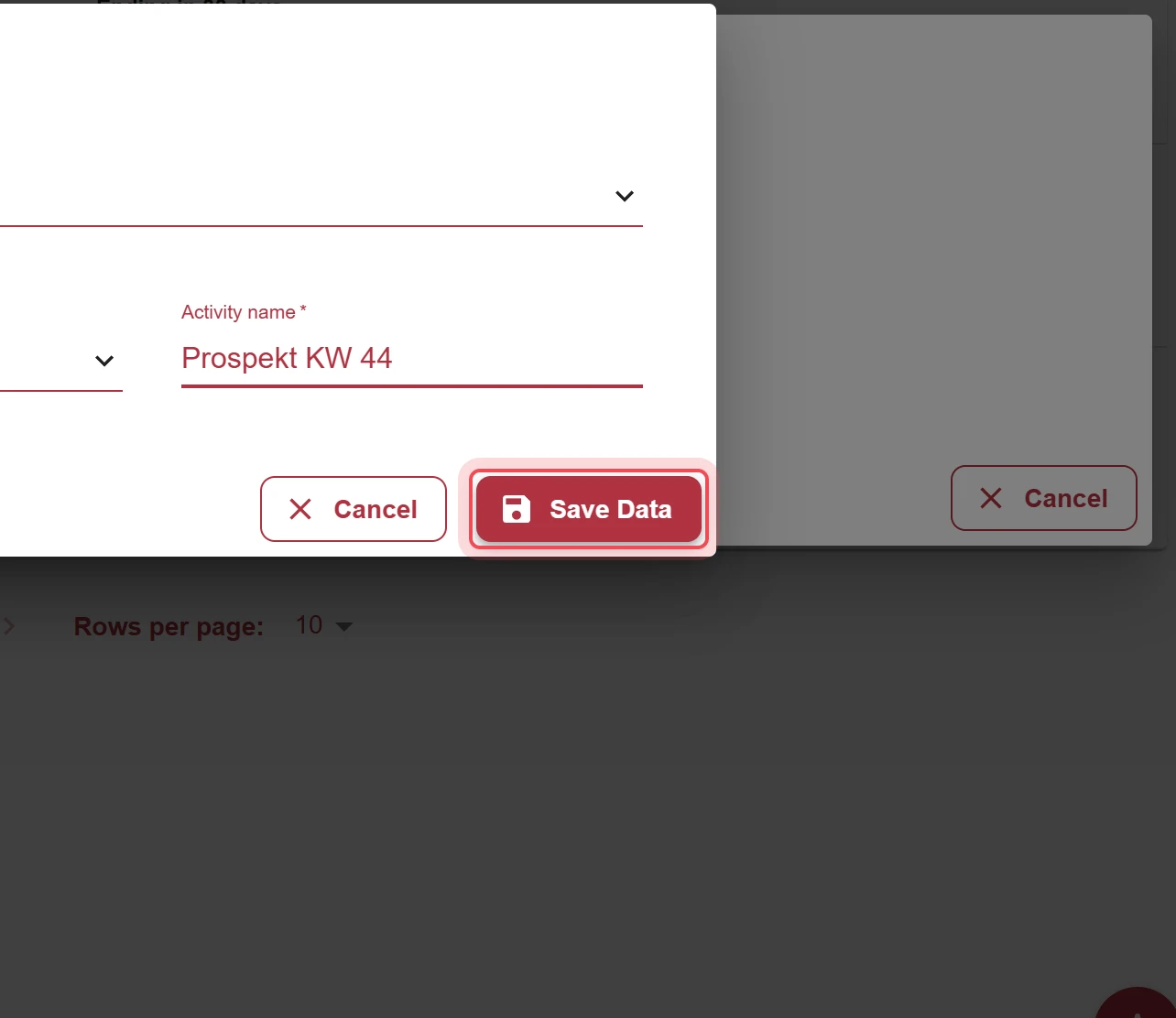
If you chose Add Manually, enter your own label in the Activity name field, for example Flyer week 44. Otherwise the name is the chosen type.
-
Save
Click Save Data.
Result
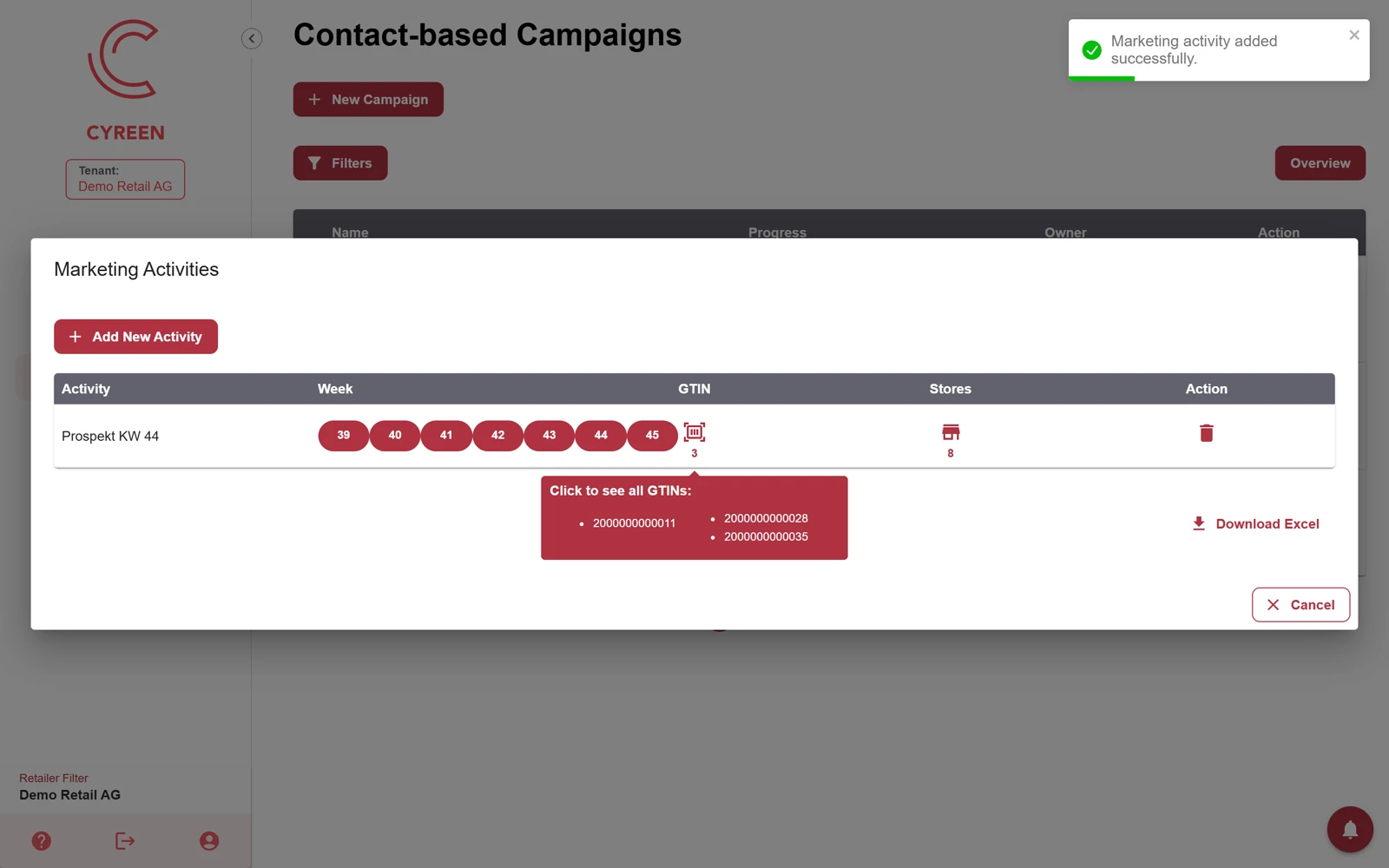
Section titled “Result”The activity appears in the Marketing Activities list of the campaign. The check mark in the gear menu is up to date right away, because the campaign list reloads after every change. New with the upcoming CAP Explorer release.
Problems?
Section titled “Problems?”Marketing activities is locked. The message «Please add analytics products before adding activities» means: create analytics products first.
There are no products to choose from in the GTIN field. You can only choose from your analytics products. Create them first.
Watch the whole process as a video (44 seconds)
Help assistant
Answers from the Help Center, no AI