
Loop-based campaigns at a glance
Loop-based campaigns are called Loop-based Campaigns in the CAP Explorer. Their visuals run without sound in the loop of the C.A.P. screens, regardless of who is in front of them. Retailers and agencies create them themselves. What Commercial, Unlimited and Programmatic mean and which reports exist is described in Understand campaign kinds.
How a loop works
Section titled “How a loop works”A loop is a fixed sequence of slots, a cycle. The C.A.P. screen plays it again and again whenever no ad contact is running. One visual plays in each slot.
- Length and slots: Cyreen sets for each store how long the loop is and how long one slot lasts. A loop of 120 seconds with slots of 10 seconds has 12 slots.
- Quotas: The slots are shared between the companies that show advertising in the store: Cyreen, the head office, a region for some retailers and the store itself. Each company has its own quota and can only add as many visuals as it has slots. The quota applies per day and store. Only the Commercial quota affects the length of the loop, Unlimited has no influence on it. Commercial has priority, and Unlimited only runs if not all slots are taken by Commercial or Programmatic.
Limits for visuals
Section titled “Limits for visuals”Cyreen sets for your account how much room your campaigns have in the loop. This results in two limits that the CAP Explorer checks when you create a campaign:
- Number of visuals per campaign: It depends on the campaign type and on the customer. Maximum number of visuals appears above the upload field. The CAP Explorer rejects further files with «Maximum number of visuals exceeded». If you change the type, files you already chose are removed.
- Maximum video length: A video can be at most as long as the maximum duration that Cyreen has set for your account. The CAP Explorer does not accept longer videos.
Why can I not add a visual in a store?
Section titled “Why can I not add a visual in a store?”Usually the slots of your quota in this store are already taken for your run time. The store then cannot be selected in the Stores step: its name is red, the checkbox is gray, and the Available column shows a cross instead of a check mark.
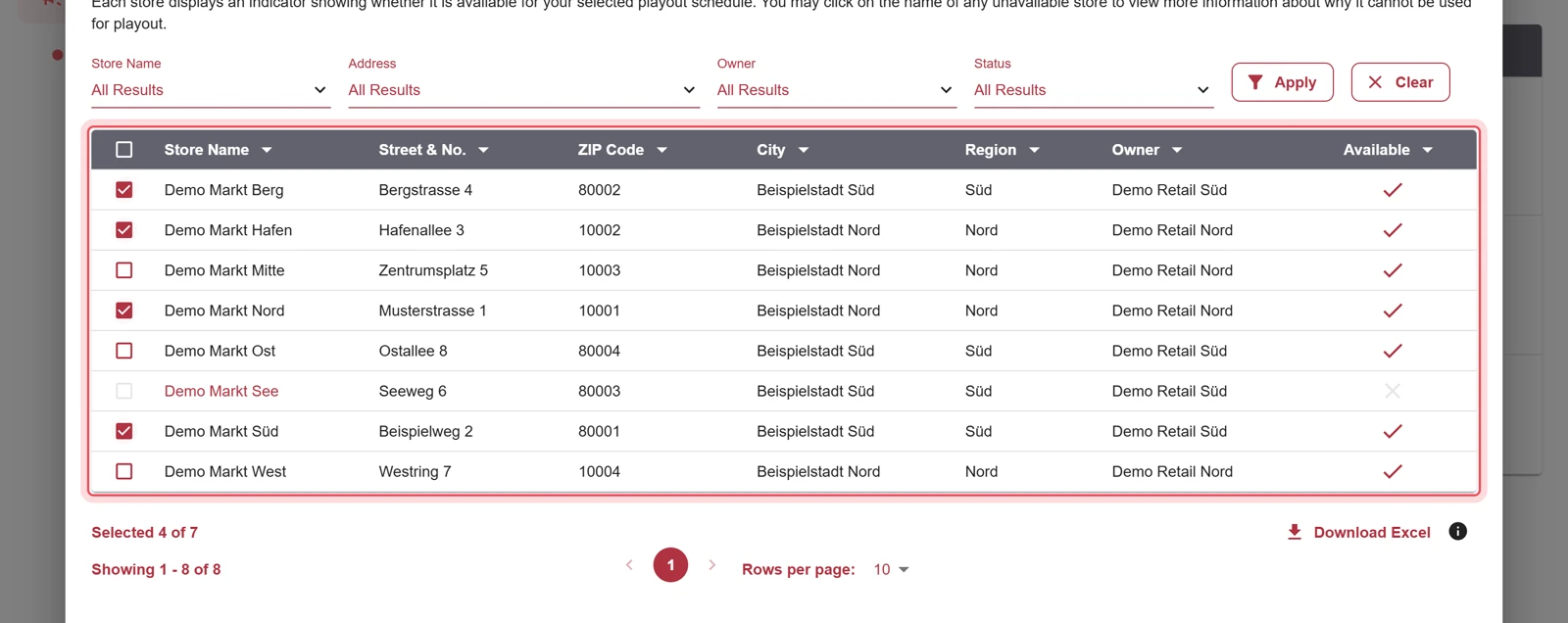
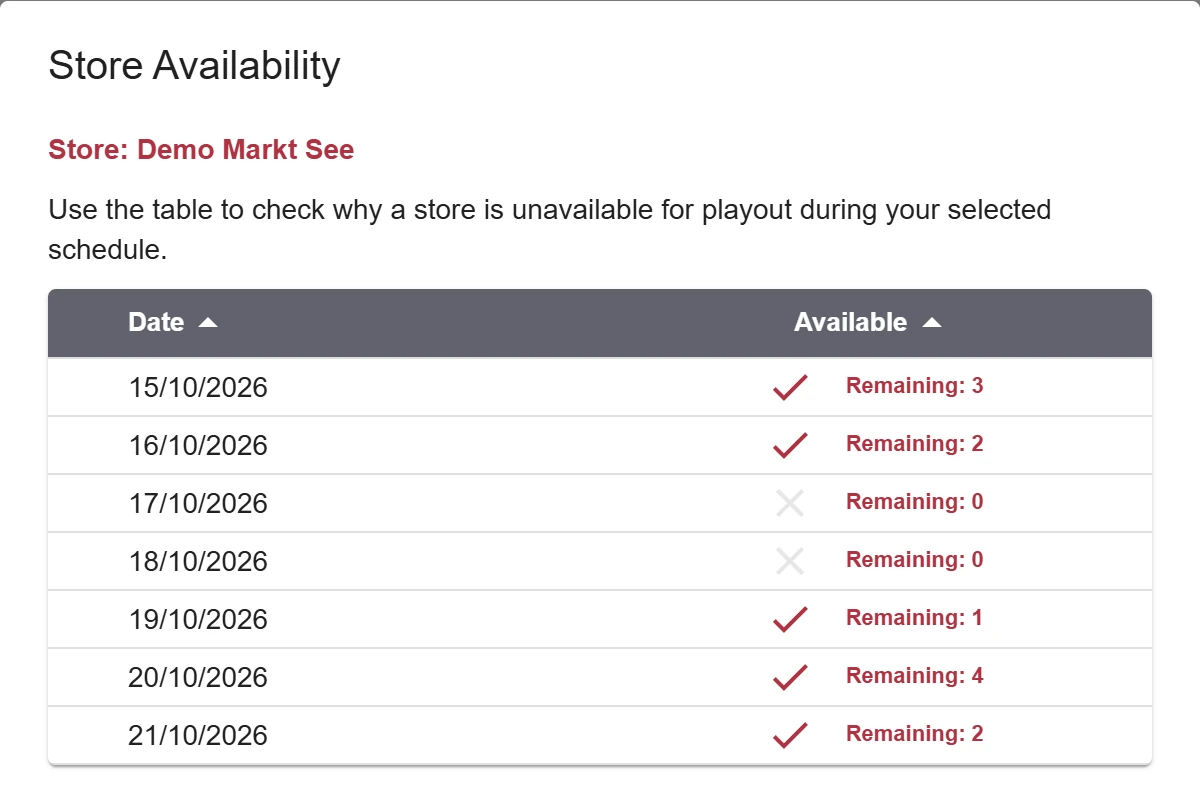
- Click the name of the store. The Store Availability window shows for each day whether the store is available and, under Remaining, how many visuals still fit.
- Choose a run time with free slots, or end one of your own campaigns in this store, see Change, stop or delete a loop-based campaign.
Help assistant
Answers from the Help Center, no AI