
Create a new user
You create new users in the CAP Explorer yourself and assign them a role.
Before you start
Section titled “Before you start”- You need the permission User List at the Manage level.
- Have the user name and e-mail address ready.
- Think about which role the user needs, see Access and permissions.
-
Open User List
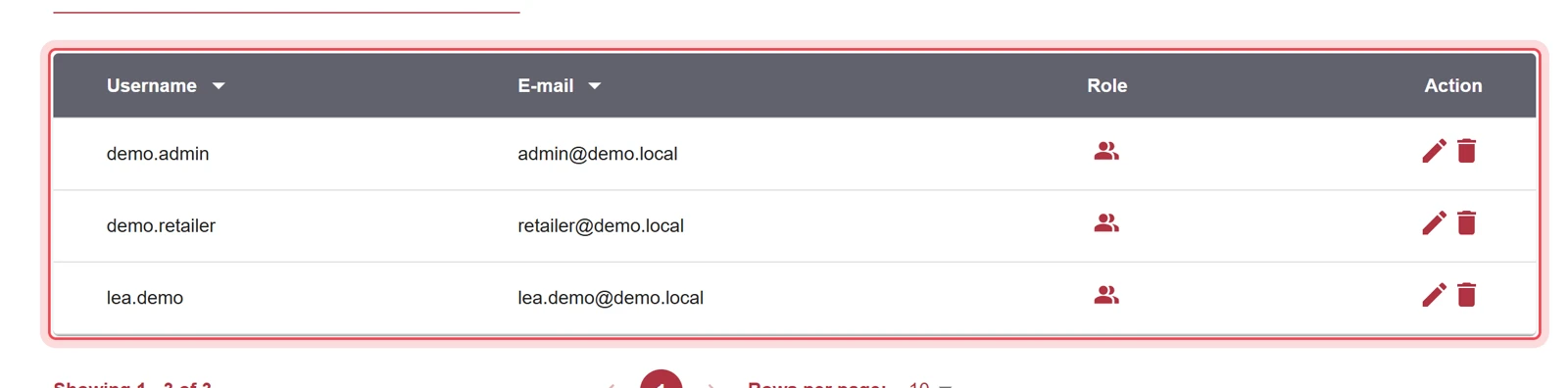
In the Users menu, choose User List.
-
Start a new user
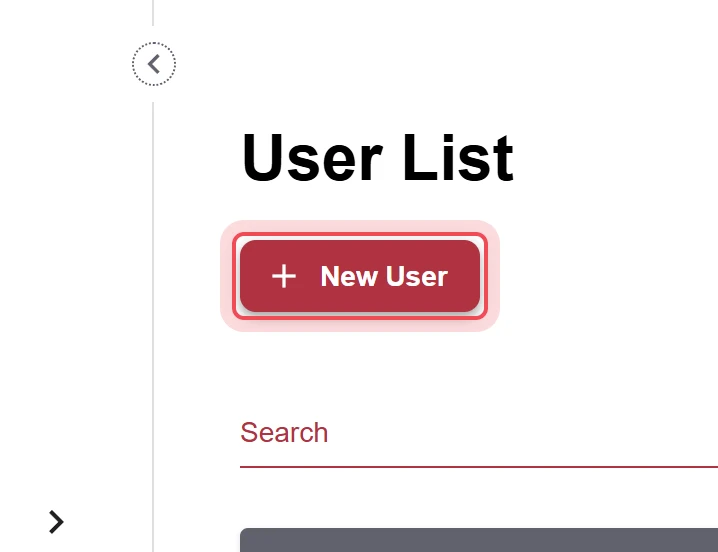
Click New User.
-
Enter name and e-mail
Enter the user name in the User Name field and the e-mail address in the E-Mail field. The Company field is not always present. It decides which workspace the user is assigned to.
-
Choose a role
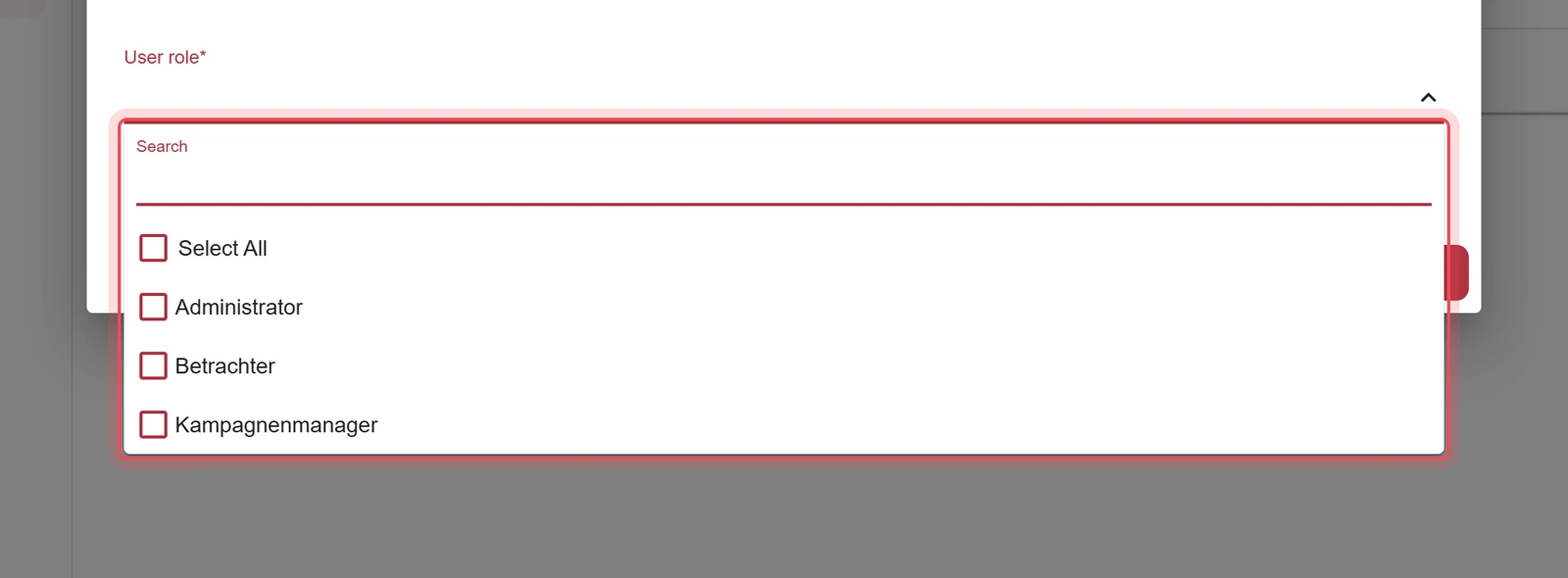
Open the User role field and choose at least one role.
-
Save
Click Save.
Result
Section titled “Result”The new user appears in the list and always receives an e-mail asking them to create a password. The link in the e-mail is valid for 14 days and then expires. In that case, Forgot password? helps, see Forgot password. You see the role when you point the mouse at the person icon in the Role column. The user changes their password themselves, see Change your password.

Problems?
Section titled “Problems?”I cannot find the right role. You only see the roles you are allowed to assign. If one is missing, use the contact form.
The user did not receive the e-mail. Check the e-mail address in the user list and the spam folder. If that does not help, use the contact form.
Watch the whole process as a video (29 seconds)
Help assistant
Answers from the Help Center, no AI