
Create a loop-based campaign
A loop-based campaign plays your visuals in the loop of the C.A.P. screens in the stores you choose.
Before you start
Section titled “Before you start”- You need the permission Loop-based Campaigns at the Manage level, see Access and permissions.
- Have your visual ready, as an image or video. The file requirements are in Visual specifications.
- Decide on the start, the end and the stores you want. The earliest start is today.
-
Open Loop-based Campaigns
In the left menu under Campaigns, choose Loop-based Campaigns.
-
Start a new campaign
Click New Campaign at the top right. A wizard with four steps opens.
-
Fill in the general details
Enter the campaign name and the brand name, choose start and end, the Brand Company and the campaign type. Then click Next.
The difference between Commercial and Unlimited is explained in Understand campaign kinds. If a type is grayed out and marked Not Available, it is not enabled for your account. Which types you can use is agreed with Cyreen.
-
Upload a visual
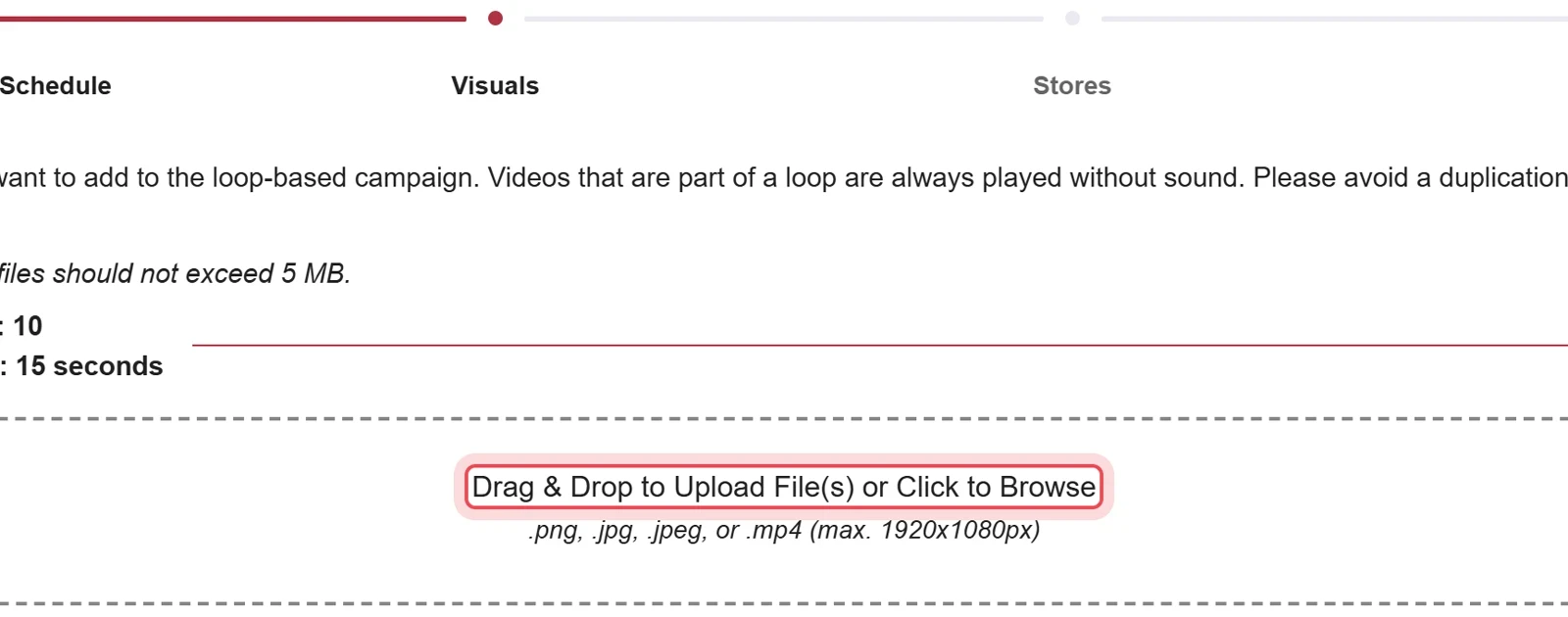
Drag your file into the field or click to choose it. Click Next.
-
Choose stores
Select the stores where the visual should run. With the checkbox in the header row you select all at once. Stores with a gray cross in the Available column are not available for your run time. Click the name to see the reason. Click Next.
-
Review and save
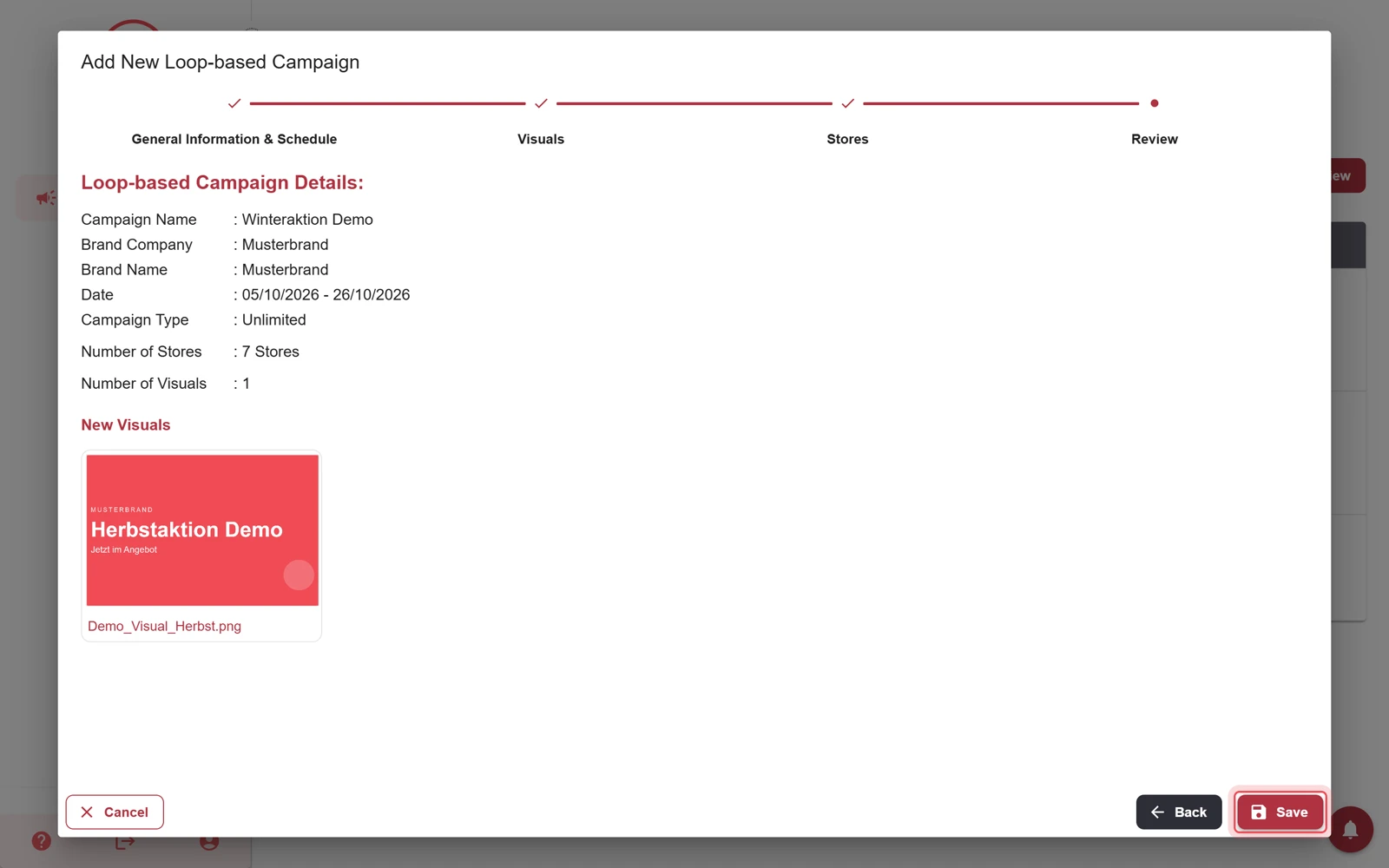
The summary shows all details. If everything is correct, click Save.
Result
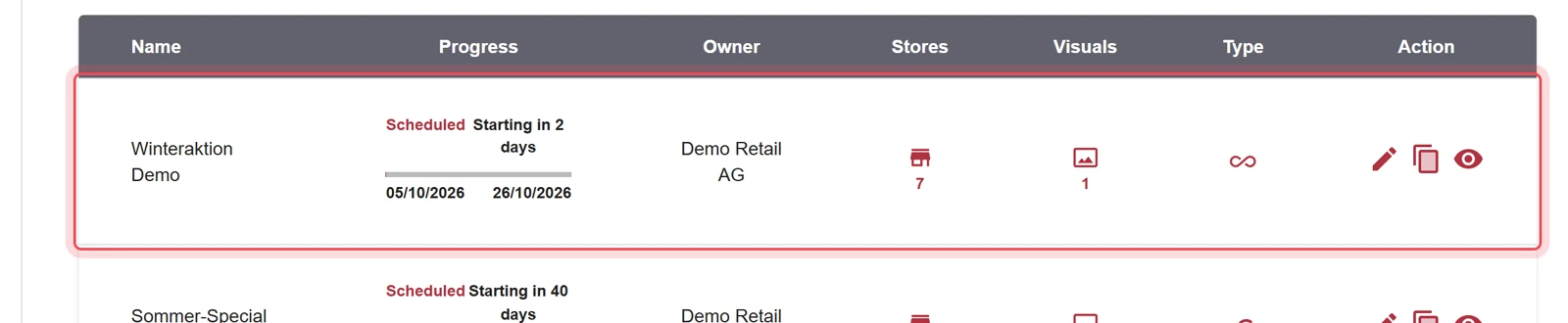
Section titled “Result”The new campaign appears in the Loop-based Campaigns list and starts automatically on the chosen date. If it starts today, it runs within about 15 minutes or as soon as the store opens. What you can still change afterwards is described in Change, stop or delete a loop-based campaign.
Problems?
Section titled “Problems?”The file cannot be uploaded. Check format, size and file name against the Visual specifications.
A store cannot be selected. It has no free capacity for your run time. Click the store name to see the reason, see also Loop-based campaigns at a glance.
The campaign does not start. Check the start date in the list. If that does not help, use the contact form and give the campaign name.
Watch the whole process as a video (80 seconds)
Help assistant
Answers from the Help Center, no AI