
Change, stop or delete a loop-based campaign
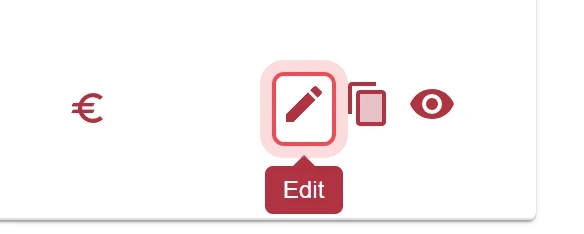
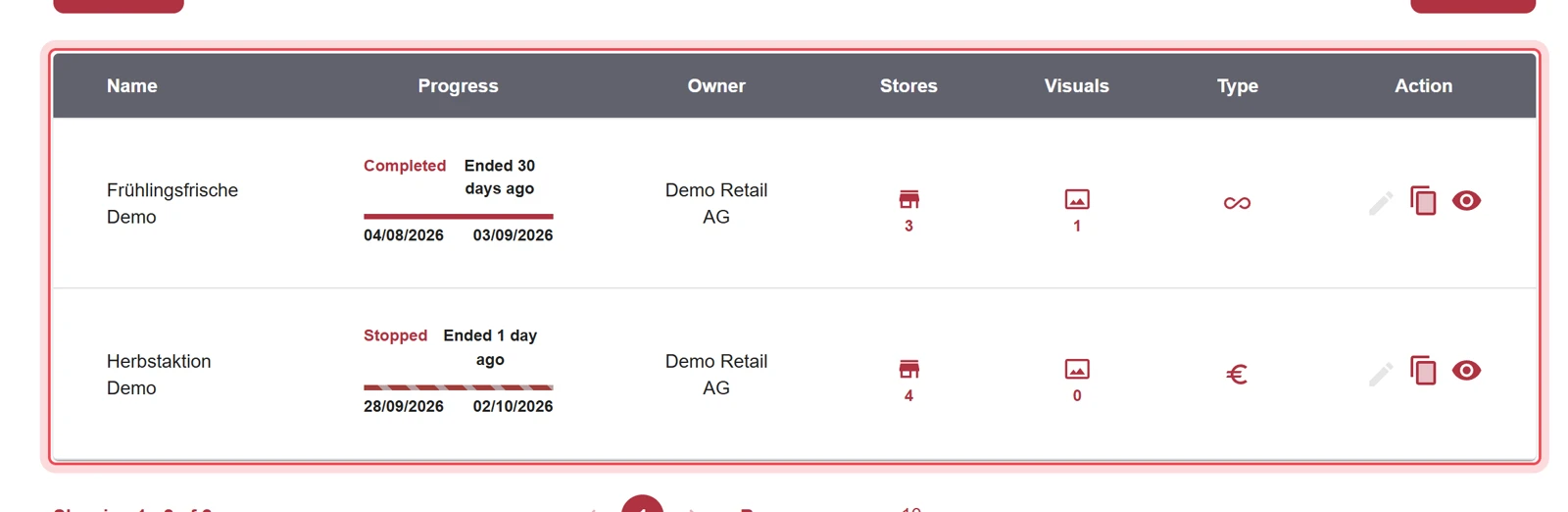
With the pencil icon Edit, you change a loop-based campaign, stop a running one or delete a scheduled one.
Before you start
Section titled “Before you start”- You need the permission Loop-based Campaigns at the Manage level, see Access and permissions.
- The campaign belongs to your company and is neither completed (Completed) nor stopped. Otherwise Edit is gray and shows «Not Available» or «No Access».
You stop contact-based visuals differently, see Stop a contact-based visual immediately.
Change a campaign
Section titled “Change a campaign”What you can change depends on the status of the campaign.
| Detail | Scheduled | Active |
|---|---|---|
| Campaign Name, Brand Company, Brand Name | Yes | Yes |
| Start Date | Yes | No |
| End Date | Yes | Yes |
| Type | No | No |
| Stores | Yes, only unavailable stores are locked | Yes, only unavailable stores are locked |
| Add a visual | Yes, up to the maximum number | Yes, up to the maximum number |
| Remove a visual | Yes, with Remove Visual | No, only stop it with Stop Visual |
-
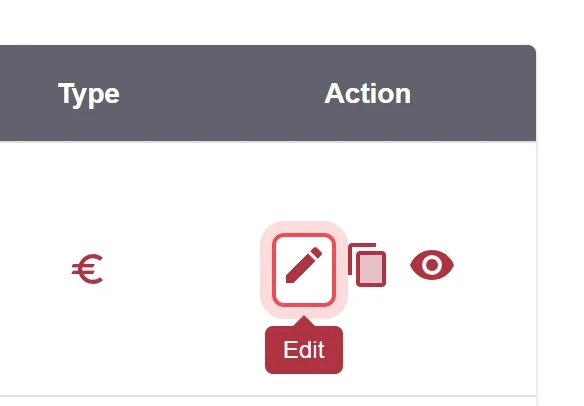
For the campaign, click the pencil icon Edit in the Action column. The window Edit : campaign name opens with the steps General Information & Schedule, Visuals, Stores and Review.
-
Change the details in the relevant step. Use Next and Back to move between the steps.
-
In the Visuals step, you add more visuals. When the maximum number is reached, «Maximum file upload limit reached. You cannot upload more files.» appears.
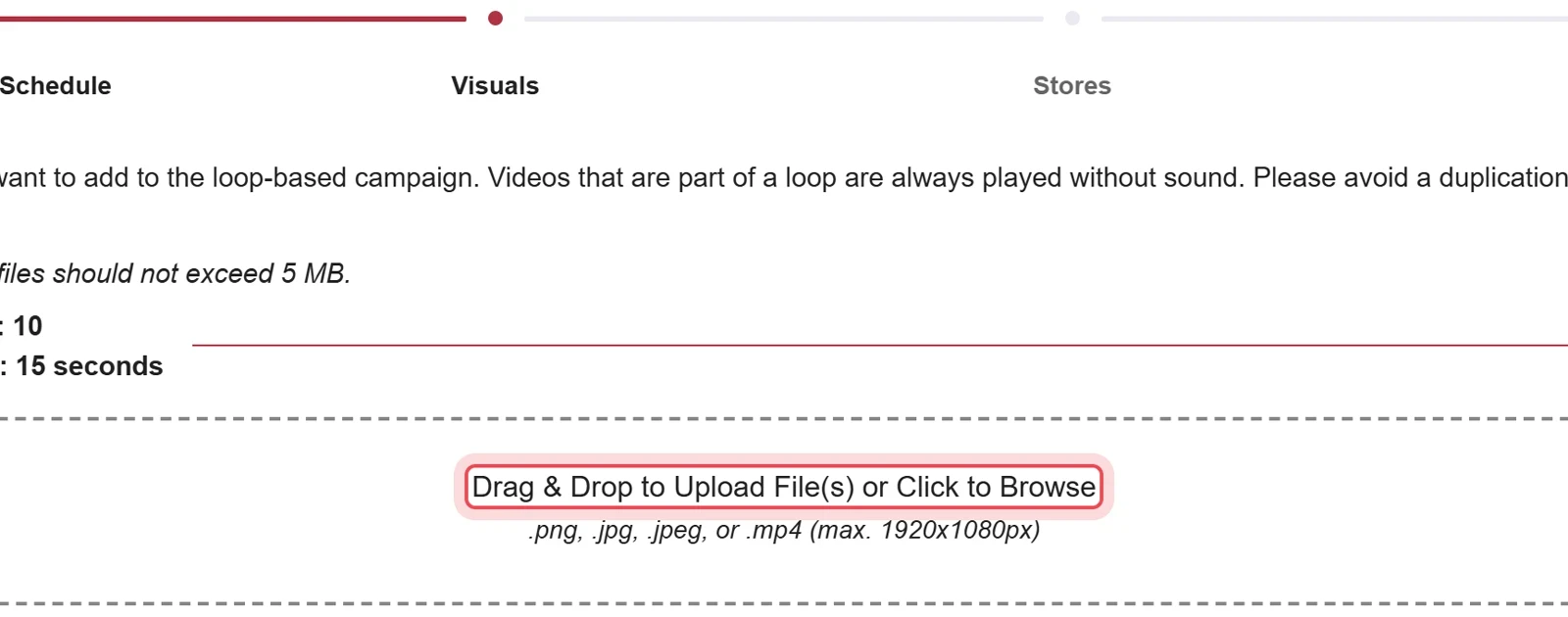
The Visuals step, shown here while creating. In the Edit window it looks the same. - Scheduled: Click the X Remove Visual at the visual and confirm the question «Removing the visual will permanently delete it from this campaign.».
- Active: Click Stop Visual at the visual and confirm the question «You are about to permanently stop the playout of the visual.». Stopped visuals are then listed under Stopped Visuals with the date (Stopped on).
-
Click Save.
Your changes are saved. A visual cannot be replaced directly: remove or stop the old one and add a new one. If you need a different type or a different start, clone the campaign.
Stop a campaign
Section titled “Stop a campaign”Stopping is only possible with the status Active and cannot be undone. A stopped campaign cannot be resumed.
-
For the campaign with the status Active, click the pencil icon Edit in the Action column.
-
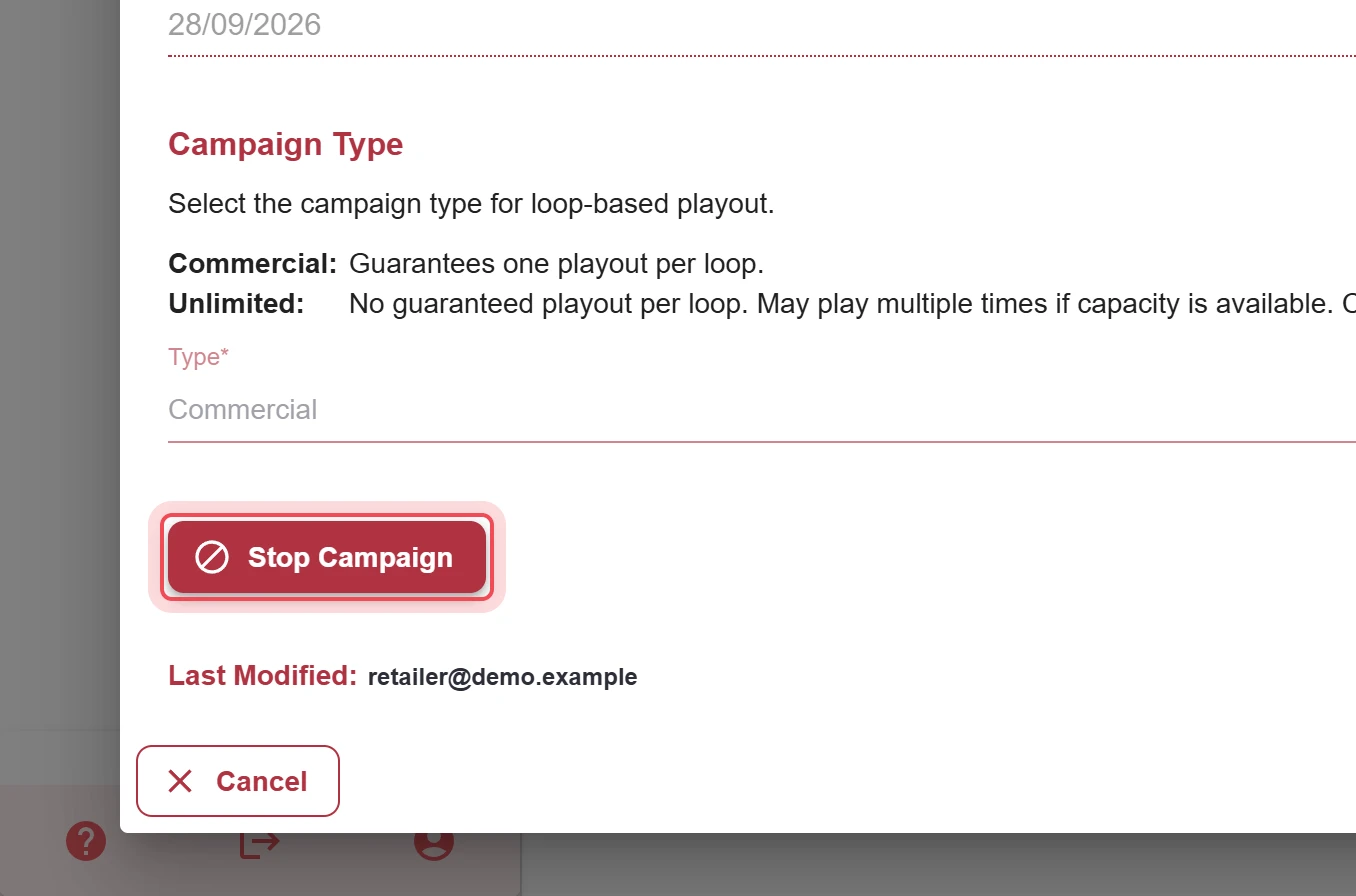
In the first step, General Information & Schedule, click Stop Campaign. The button only appears for active campaigns.
-
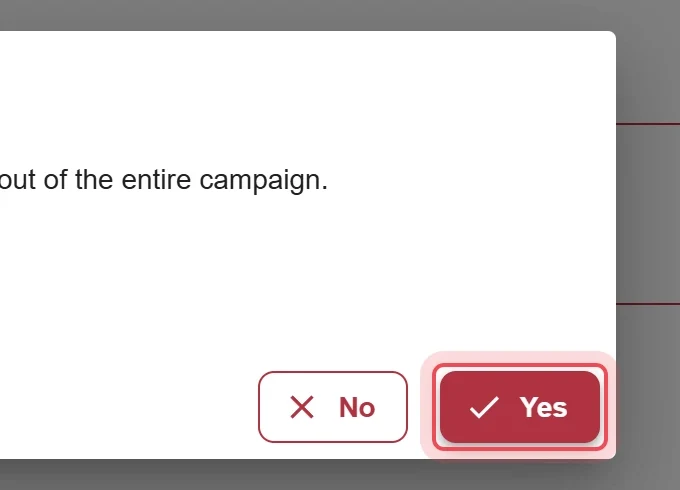
The question reads «You are about to permanently stop the playout of the entire campaign.». Click Yes.
-
The campaign now shows the status Stopped.
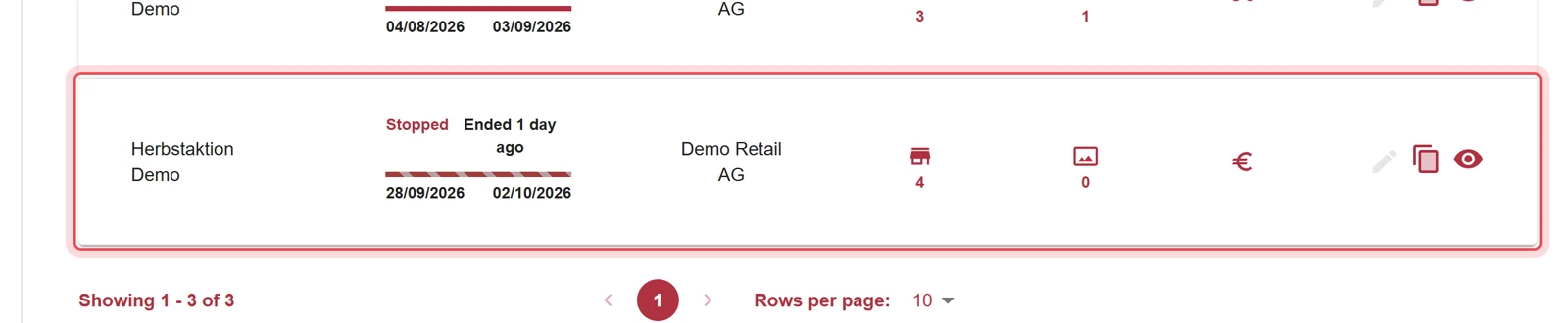
The campaign is no longer played out. It can still be visible in the store for up to 15 minutes, because content is always synchronized the same way in the store.
Delete a campaign
Section titled “Delete a campaign”Deleting is only possible with the status Scheduled and cannot be undone. If you need the campaign again later, clone it before you delete it.
-
For the campaign with the status Scheduled, click Edit.
-
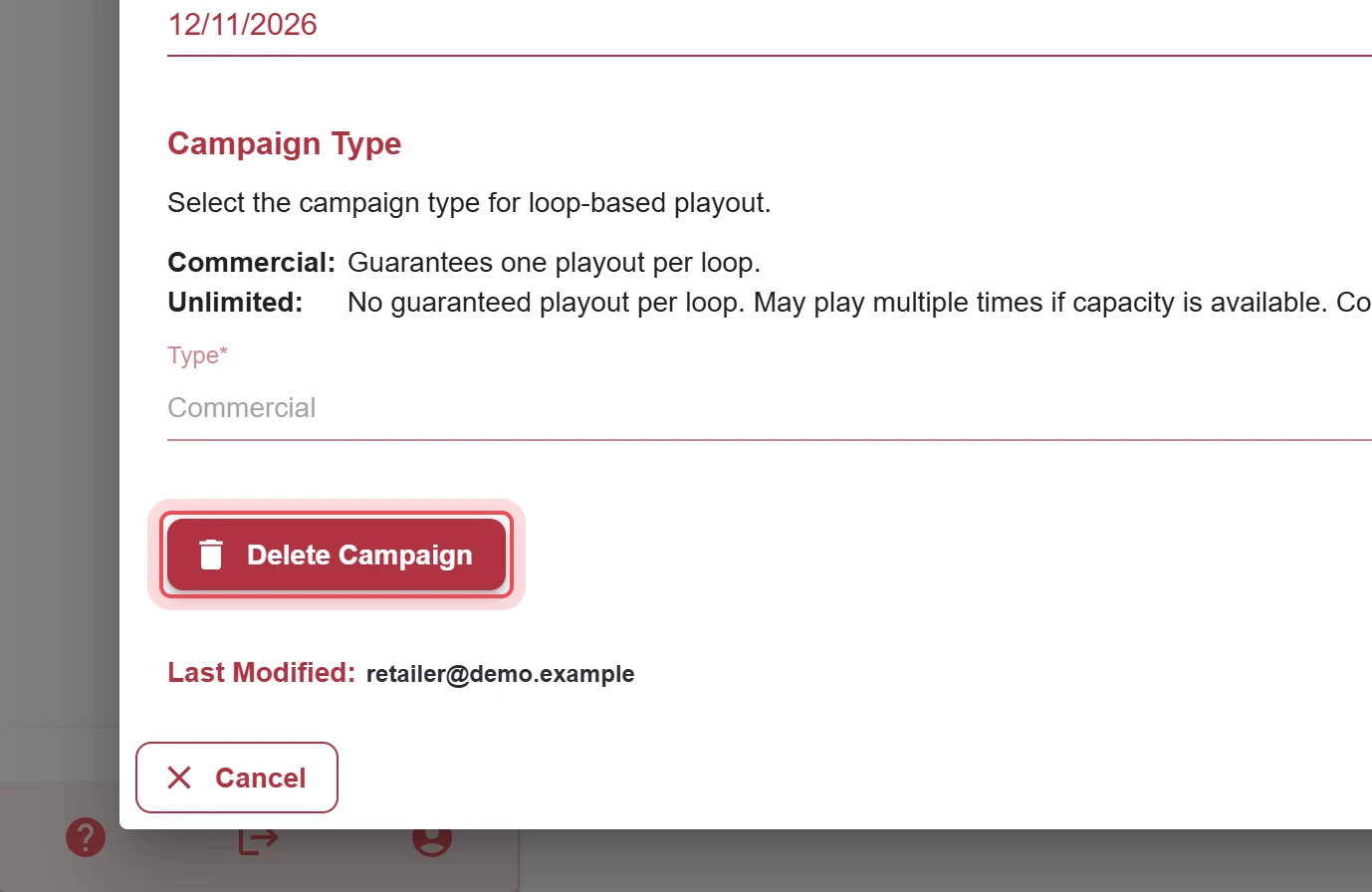
In the first step, click Delete Campaign.
-
The question reads «You are about to permanently delete this campaign.». Click Yes.
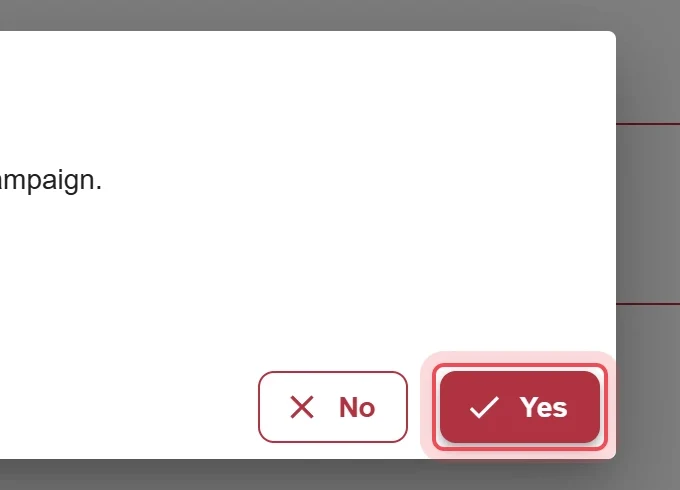
The campaign is no longer in the list.
Problems?
Section titled “Problems?”The Delete Campaign button is missing. Deleting is only possible with the status Scheduled. If the campaign has started, you can only stop it.
The Stop Campaign button is missing. It only appears for campaigns with the status Active.
The Start Date field is locked. From the status Active, the start is fixed.
Watch stopping and deleting as a video (33 seconds)
Help assistant
Answers from the Help Center, no AI