
Add analytics products
Analytics products are the products whose sales are evaluated for the campaign. Without them, you cannot request the Performance dashboard. You enter them one by one or by file import.
Before you start
Section titled “Before you start”- The campaign has been created, see Create a contact-based campaign. You can add analytics products at any time, also while the campaign is running.
- Products with the same Group No. belong to the same analysis group. What analysis groups are for is described in Measuring campaign impact. The rules for analysis groups apply.
- After you have requested the Performance dashboard, the analytics products can no longer be changed. Changes are then only possible in individual cases through the contact form.
Bundle Size: make multipacks comparable
Section titled “Bundle Size: make multipacks comparable”With the Bundle Size you bring multipacks to a common denominator. A crate of beer with 24 bottles, for example, gets the bundle size 24. A crate that is bought then counts like 24 single bottles and is comparable with the purchase of a single bottle.
- Whether you convert multipacks like this depends on the analysis you want. For single products and without conversion, enter 1.
- The bundle size affects the Basket Size key figure (average sales). The Conversion Rate does not change.
Rules for analysis groups
Section titled “Rules for analysis groups”These rules apply to analysis groups. The examples come from a campaign for iced tea.
| Rule | Works | Does not work |
|---|---|---|
| One campaign can have multiple analysis groups. | Group 1 «Advertised products» and group 2 «Whole category» | |
| One or more products can be assigned to an analysis group. | Group 1 with lemon iced tea and peach iced tea | |
| The same product can be in multiple analysis groups, but not twice in the same one. This applies to the GTIN and to the product name. | Lemon iced tea in group 1 and in group 2 | Lemon iced tea twice in group 1, with the same GTIN or with the same product name. CAP Explorer then reports «Duplicate record». |
| Group number and group name belong together. Two analysis groups cannot have the same name. | Group 1 is called «Advertised products» in every row | Group 1 is called «Advertised products» once and «Promotion items» once, or groups 1 and 2 are both called «Iced tea» |
| A GTIN has the same description and the same bundle size everywhere. | The same GTIN appears in both groups as «Lemon iced tea 0.5 l» with bundle size 1 | The same GTIN has bundle size 1 in group 1 and bundle size 6 in group 2 |
In addition, a description belongs to exactly one GTIN. GTIN, Group No. and Bundle Size contain only digits, and the Bundle Size is not 0.
Enter a single product
Section titled “Enter a single product”-
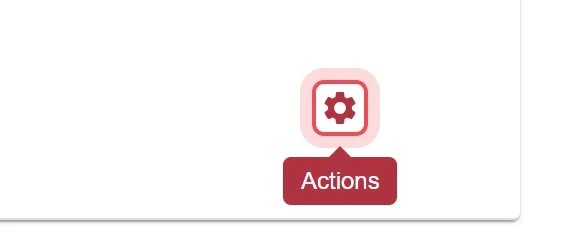
Open the gear menu
Click the gear icon in the Action column of the campaign. New with the upcoming CAP Explorer release.
-
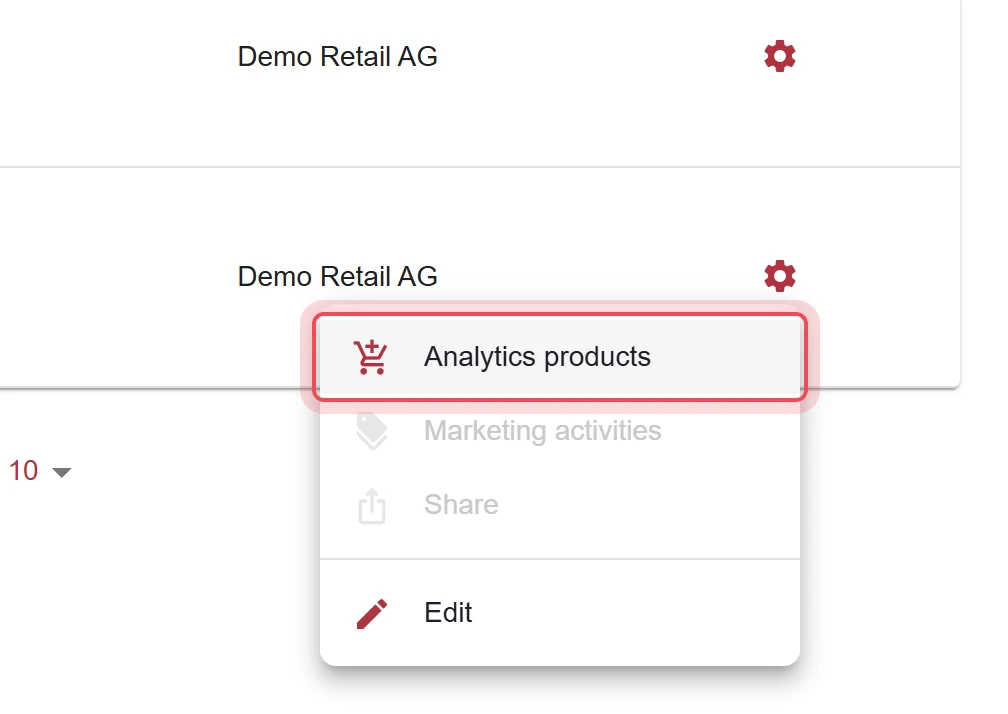
Choose Analytics products
In the menu, choose Analytics products.
-
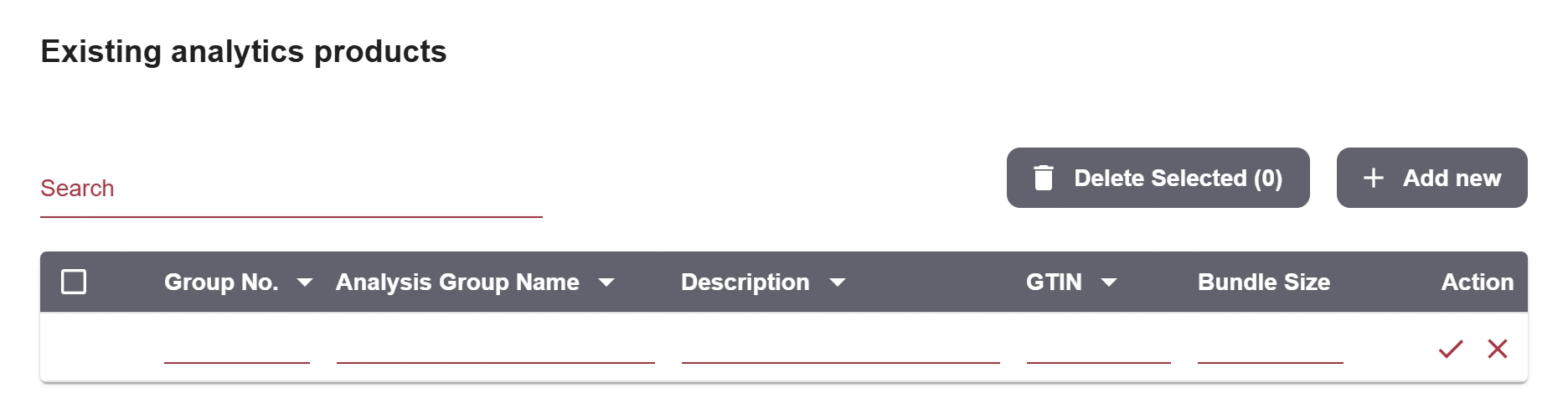
Add a new row
Under Existing analytics products, click Add new. An empty row appears.
-
Fill in the row
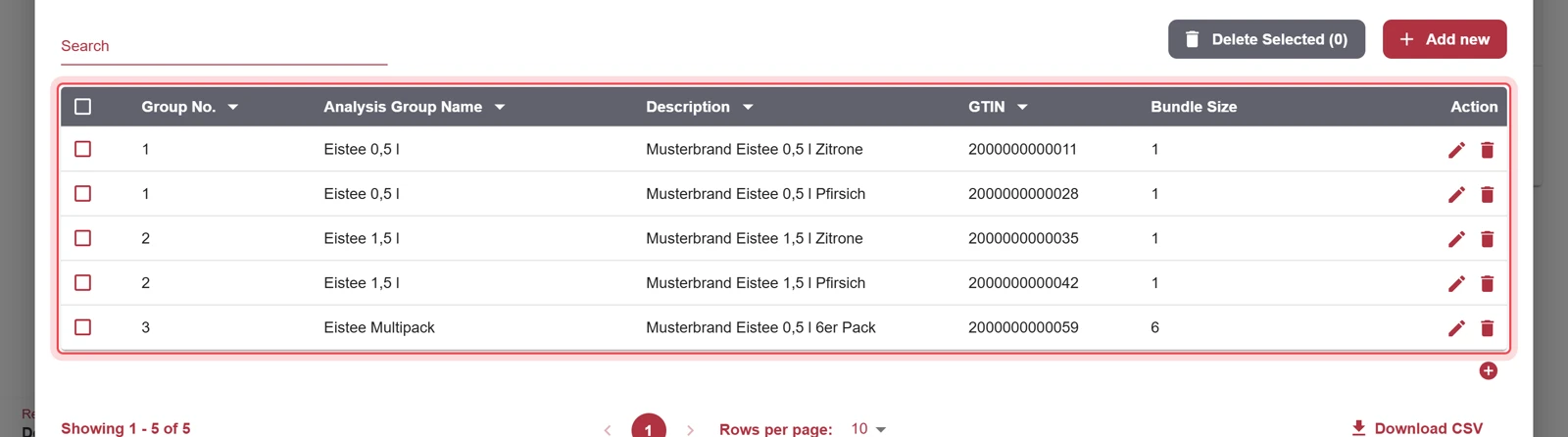
Enter Group No., Analysis Group Name, Description, GTIN and Bundle Size.
-
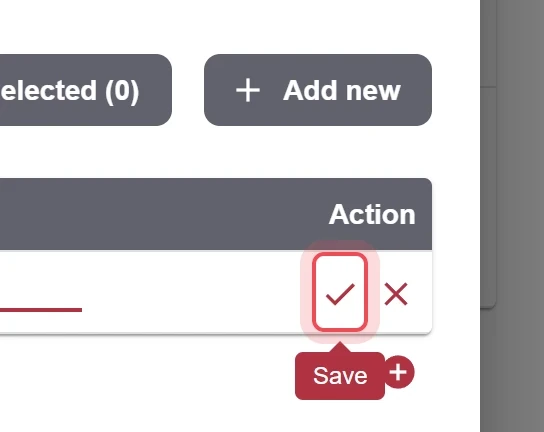
Confirm the row
Click the check mark in the Action column. The product is checked and saved.
Enter many products by import
Section titled “Enter many products by import”-
Download the template
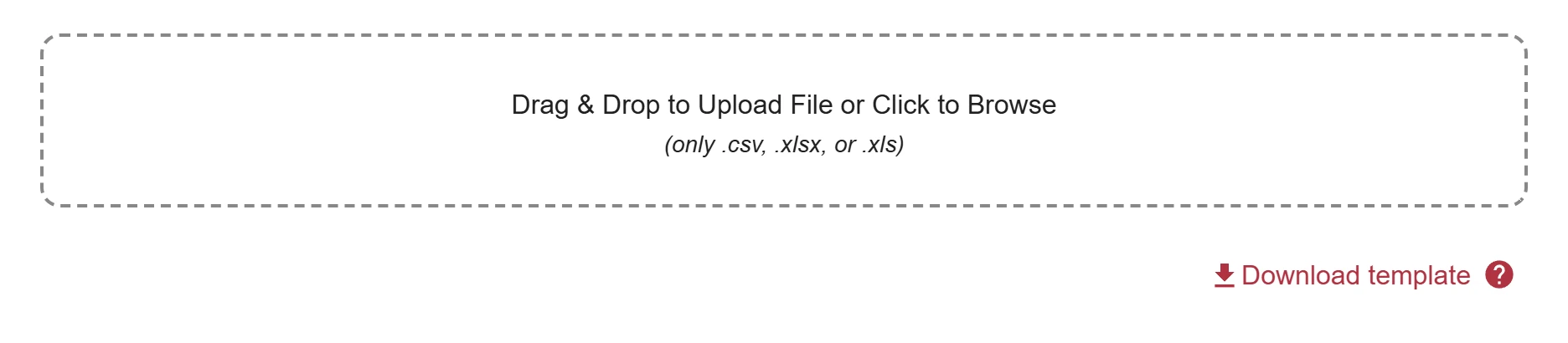
Click Download template. Always download the template in the CAP Explorer, so that you have the current version. Enter your products in the template. Allowed formats are .csv, .xlsx and .xls. The order and names of the columns must match the template, and every row needs values in all columns.
-
Upload the file
Drag the file into the Drag & Drop to Upload File or Click to Browse field or click to choose it. The preview shows Total Records before anything is saved. Errors are shown in the window.

-
Save the import
Check the preview and click Save Products.
Result
Section titled “Result”All products appear under Existing analytics products. There you search, edit and delete them and download them as CSV. For the Performance dashboard, you need at least one visual and one analytics product in an analysis group.
Problems?
Section titled “Problems?”A row is rejected. Check the row against the rules for analysis groups.
The import shows errors. The errors are shown in the window. Correct the file, which must match the format of the template, or edit the rows in the list.
I can no longer change a product. The Performance dashboard has already been requested. Changes are only possible through the contact form.
Watch the whole process as a video (45 seconds)
Help assistant
Answers from the Help Center, no AI