
Log in and password
You log in in your browser. You reset your password yourself or change it in the account settings.
Log in
Section titled “Log in”You need an account. If you do not have one yet, see Request an account.
-
Open the CAP Explorer in your browser. The button opens it in a new tab.
explorer.cyreen.de -
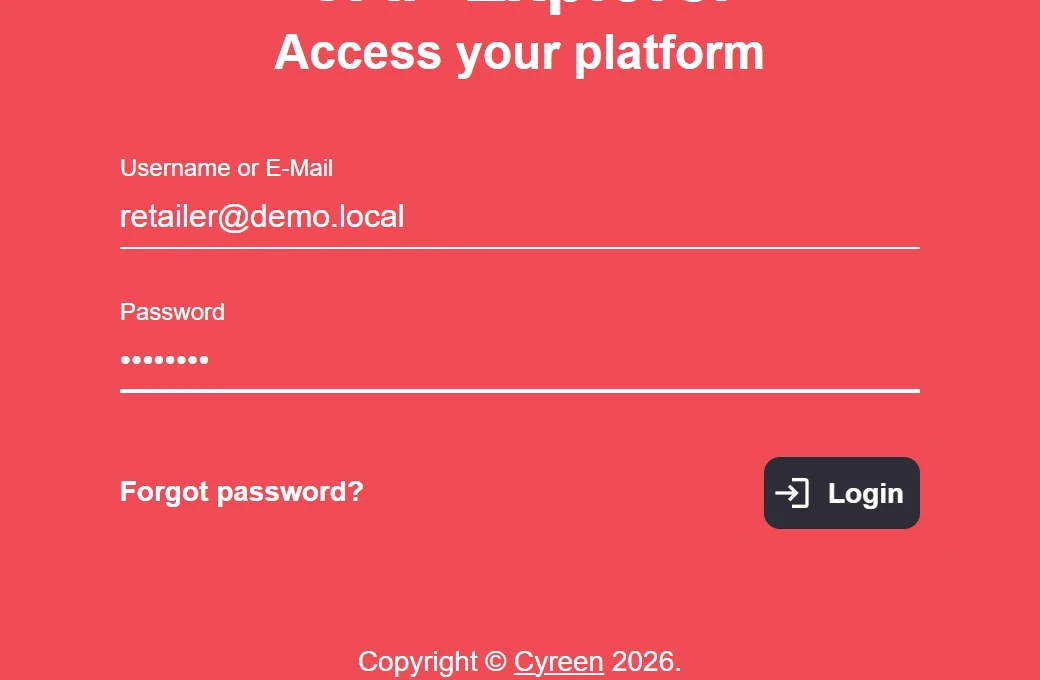
Enter your user name or e-mail address in the Username or E-Mail field and your password in the Password field. Click Login.
-
If you have access to workspaces of several retailers, the Workspace Selection window opens. Choose the workspace and click Enter.
You see the start page of the CAP Explorer. How it is structured is described in The interface. You switch the workspace later at the bottom left.
Session expires
Section titled “Session expires”New with the upcoming CAP Explorer release.
A session lasts 10 hours from the moment you log in. About 10 minutes before it ends, the notice «Your session is expiring. You will be logged out in about N minutes.» appears at the top right. N is the number of remaining minutes, at the end «1 minute». The notice updates every 30 seconds. You close it with the cross, after which it does not appear again.
About 5 minutes before the 10 hours are over, the CAP Explorer logs you out automatically and opens the login page. Inputs that you have not saved can be lost. Save your work as soon as the notice appears, and log in again as described above. The login page itself and the page for resetting the password do not show the notice.
Brand Access for brands
Section titled “Brand Access for brands”Brands have their own access: Brand Access. It is the first entry in the Workspace Selection window and also in the workspace switch at the bottom left.
As a brand user, you only see the campaigns shared with you in the Brand View. The invitation is not sent automatically: whoever shares a report triggers it when sharing, and the text of the e-mail can be adjusted. A default text is stored. If you do not have a CAP Explorer account yet, you always receive an e-mail that looks like the one for any new user. After that, log in as described above and choose Brand Access.
Forgot password
Section titled “Forgot password”You need access to the e-mail address of your account.
-
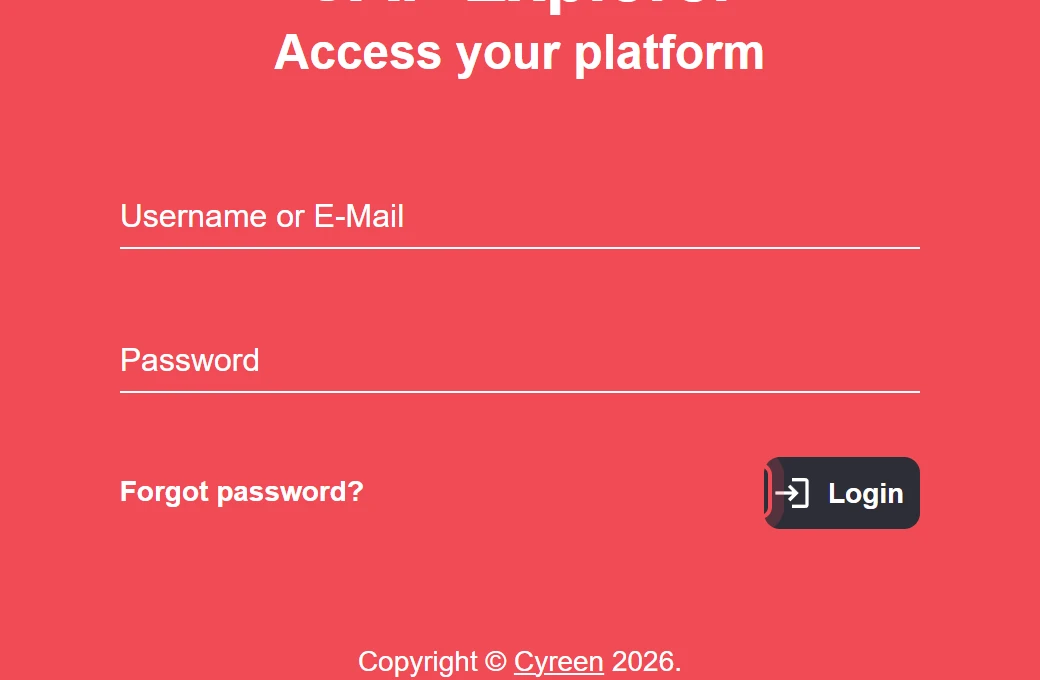
On the login page, click Forgot password?.
-
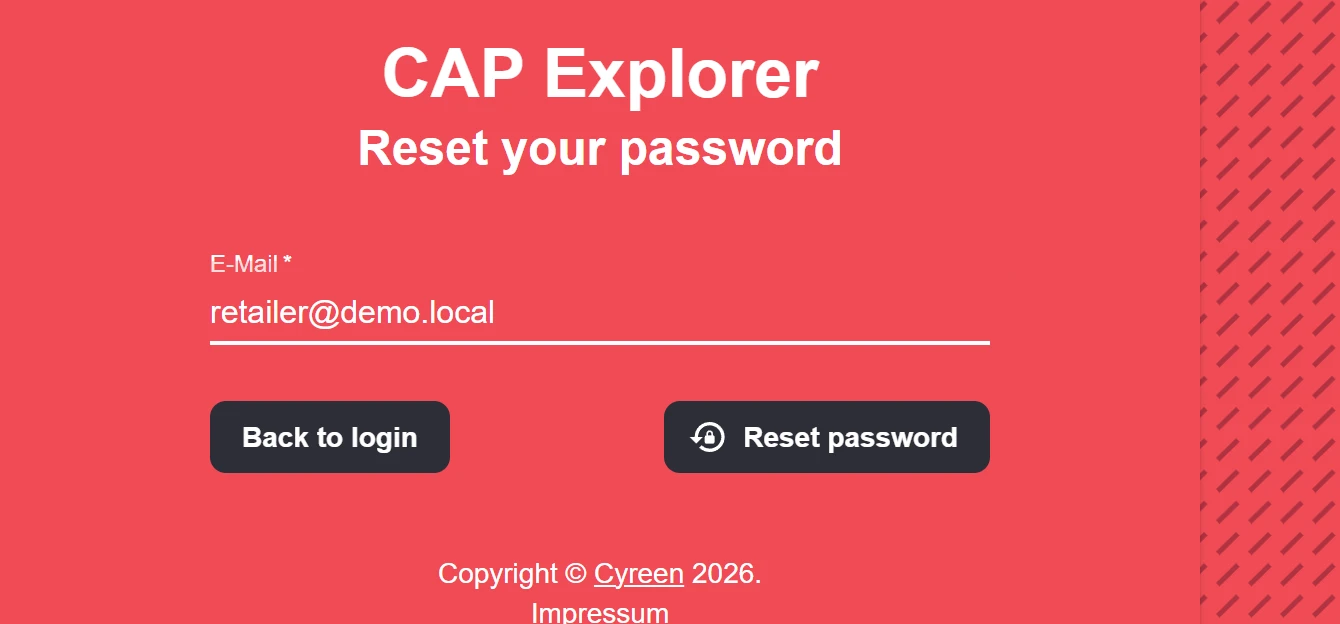
Enter the e-mail address of your account and click Reset password.
-
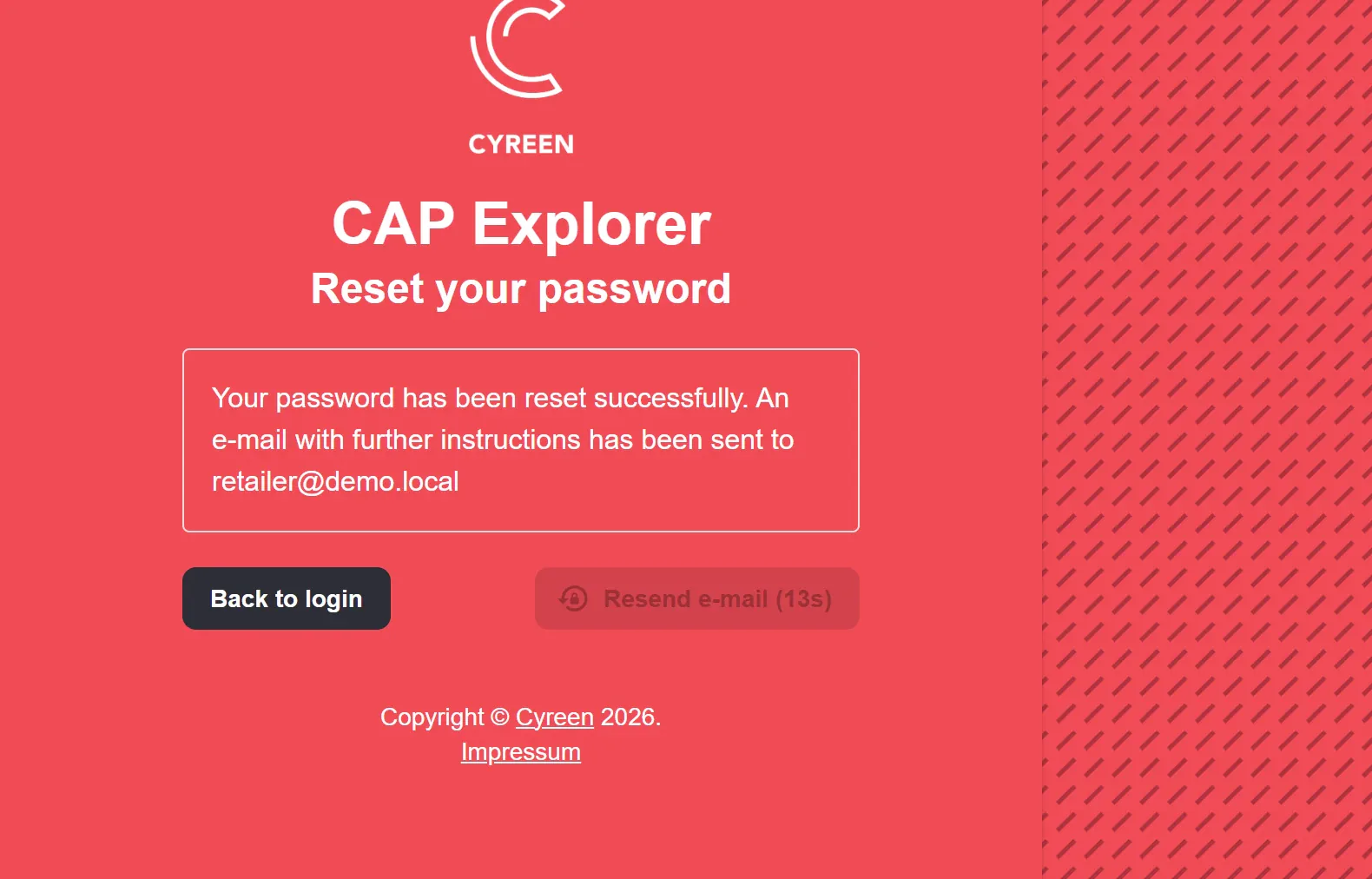
A confirmation names the address to which the e-mail with the instructions was sent. Follow the instructions in the e-mail.
You have set a new password and log in with it.
Change password
Section titled “Change password”You are logged in and know your current password.
-
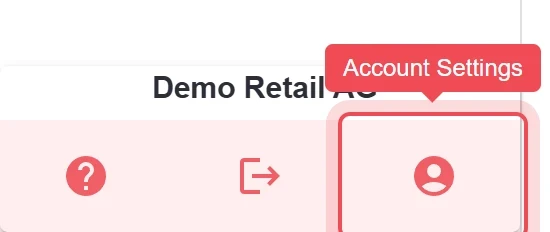
Click the person icon at the bottom left.
-
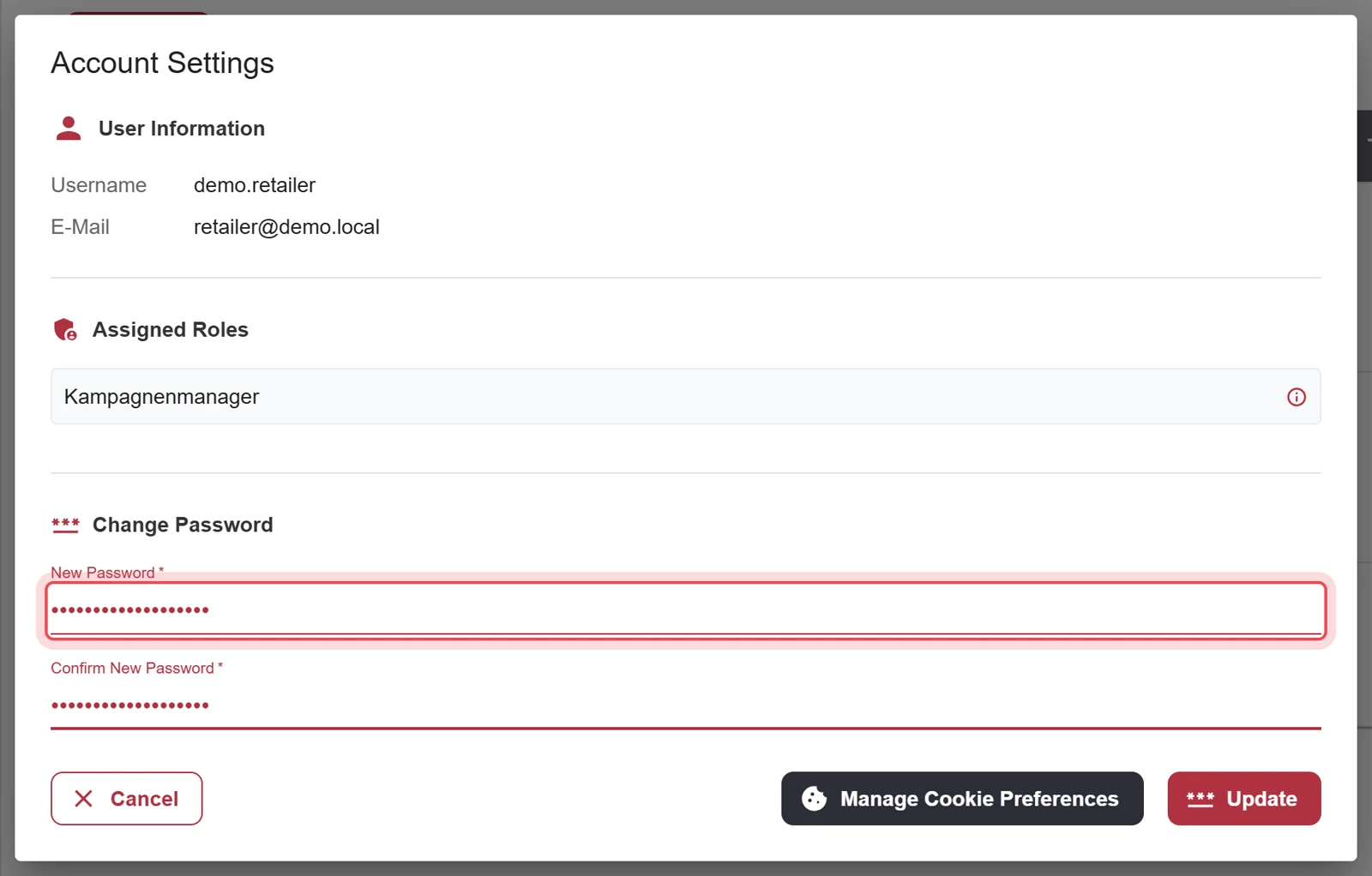
In the Account Settings, enter the new password under Change Password and repeat it in the Confirm New Password field. Click Update.
-
Confirm with Confirm.
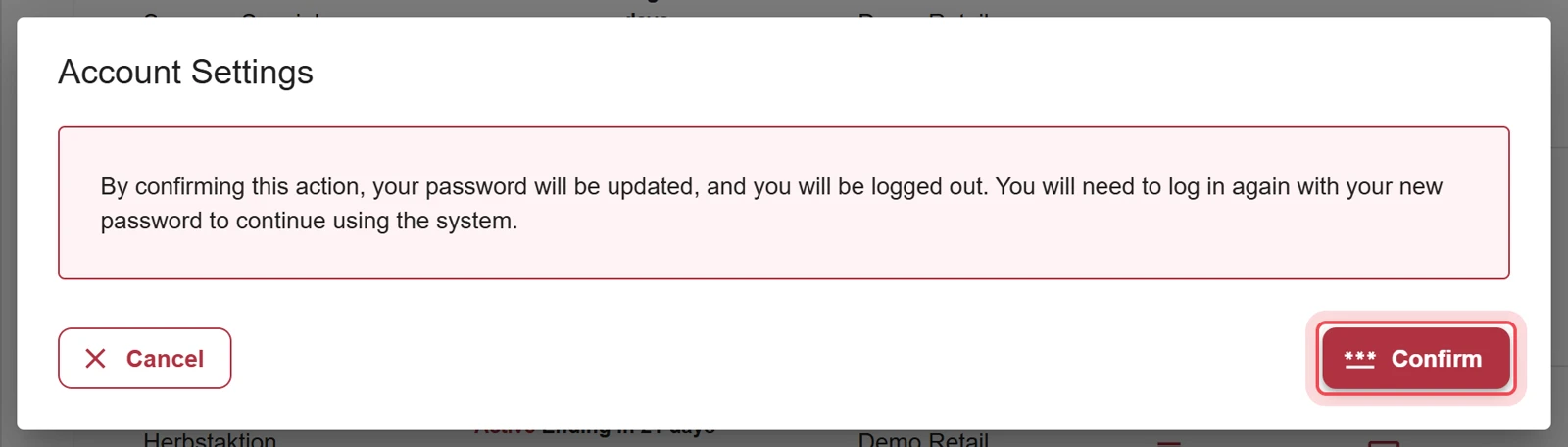
You are logged out and see the login page again. Log in with the new password.
Problems?
Section titled “Problems?”Message «Please check your username and password and try again». The user name or password is wrong.
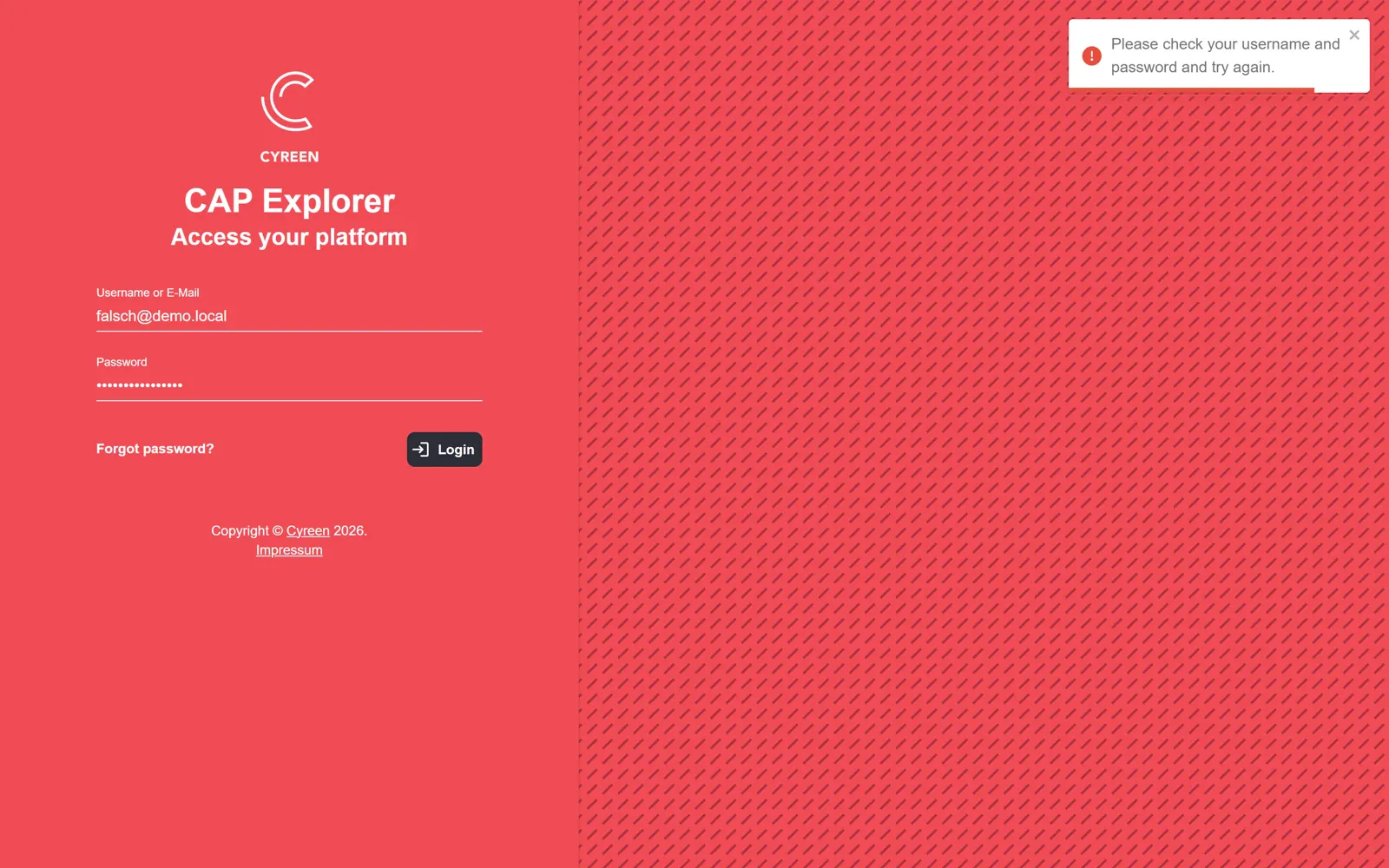
Check in this order:
- Spelling: Type your user name or e-mail address again, without spaces at the beginning or end. For the password, pay attention to upper and lower case.
- Correct address: Log in at explorer.cyreen.de.
- Forgot your password? Reset it, see Forgot password.
No e-mail to reset the password. Check your spam folder. If the e-mail has not arrived after a few minutes, use the contact form.
Help assistant
Answers from the Help Center, no AI