
Manage user roles
On the Roles page, you see what each role may do. You change the role of a user in the User List.
Before you start
Section titled “Before you start”- You need the permission User List at the Manage level.
- The available roles differ from customer to customer. What the permissions mean is described in Access and permissions.
View roles
Section titled “View roles”-
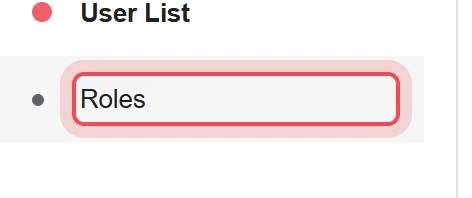
Open Roles
In the Users menu, choose Roles.
-
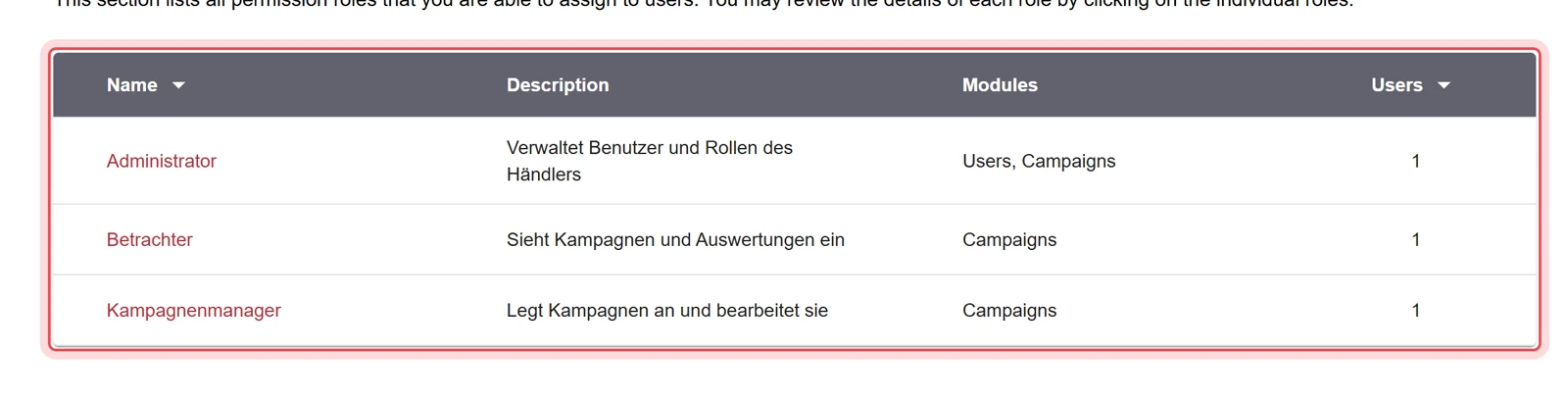
Read the role list
The list shows all roles you may assign, with description, modules and the number of users (Users).
-
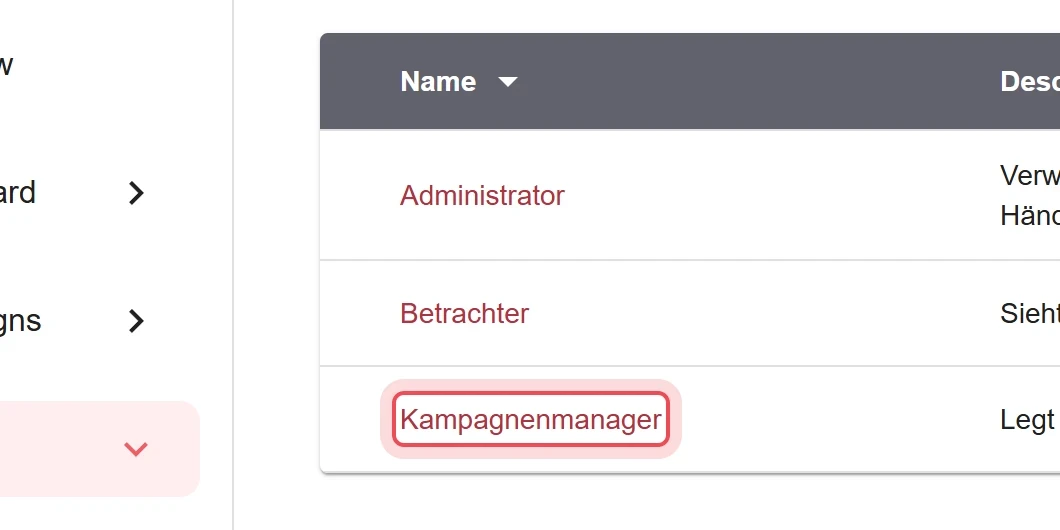
Open a role
Click the name of a role.
-
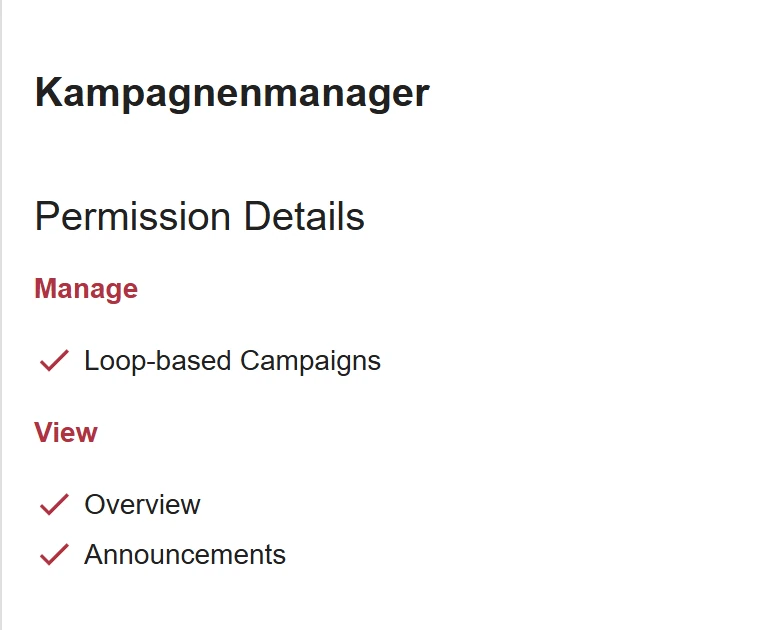
Read the rights
The Permission Details appear on the right. Manage lists what the role may edit, View lists what it may only view. The Roles page is for viewing only, you cannot change anything here.
Change the role of a user
Section titled “Change the role of a user”-
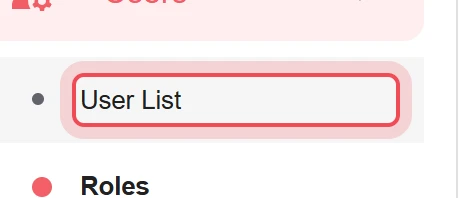
Open User List
In the Users menu, choose User List.
-
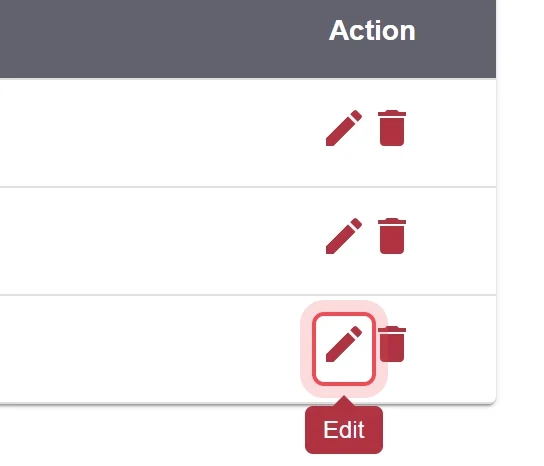
Edit the user
For the user, click the pencil icon Edit in the Action column.
-
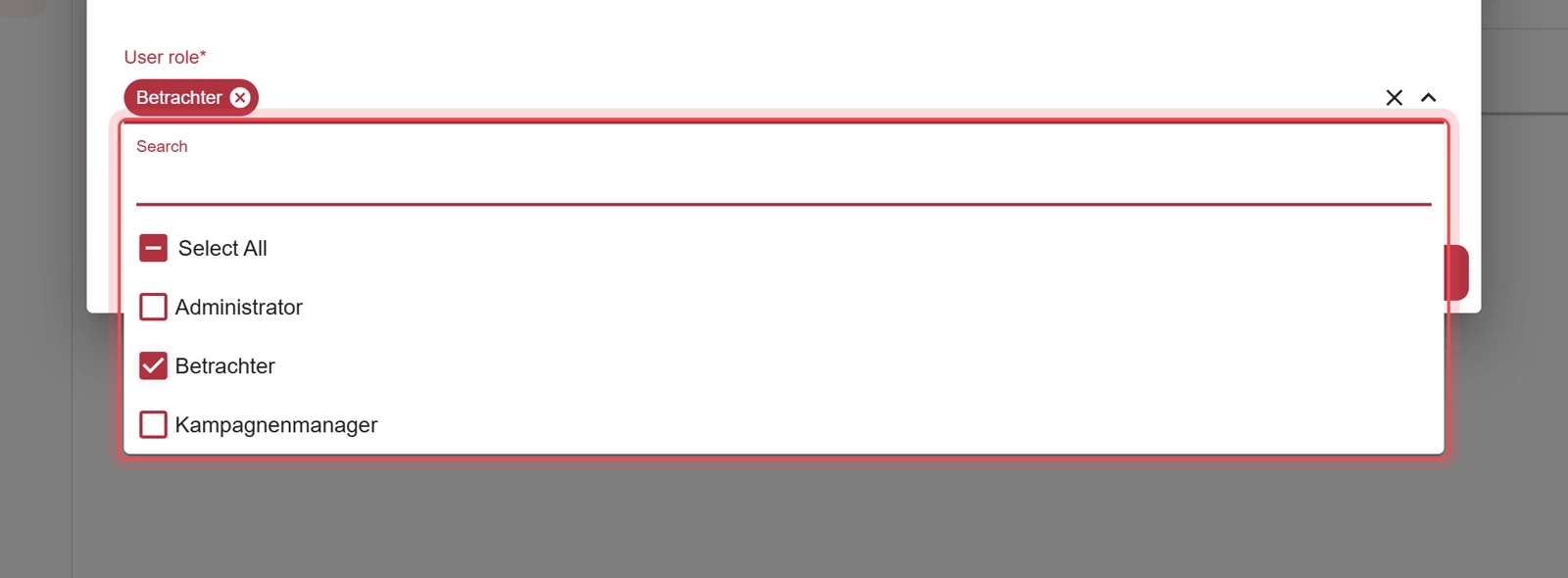
Swap the role
Open the User role field. Remove the previous role and choose the new role from the list.
-
Update
Click Update.
Result
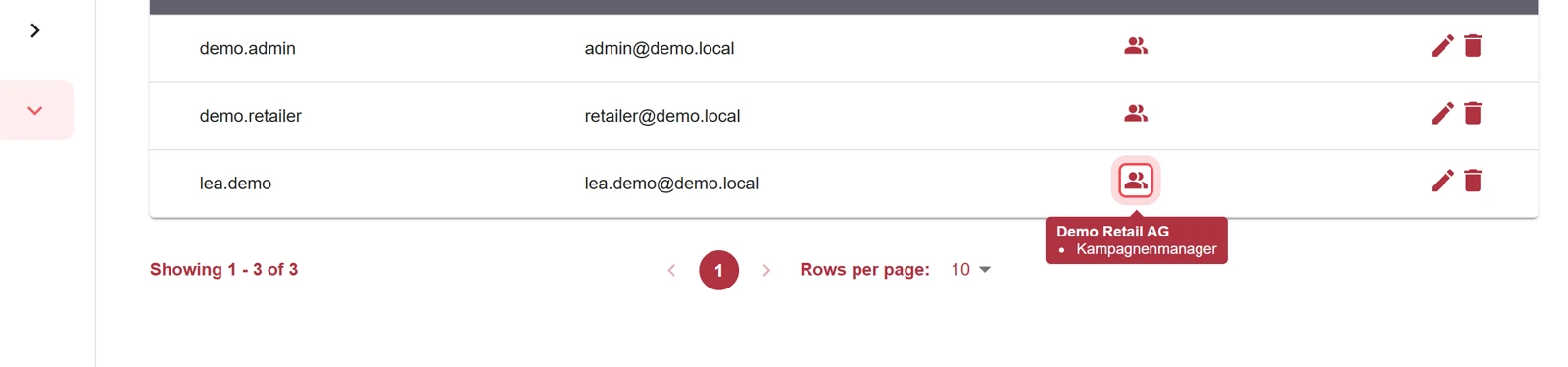
Section titled “Result”The new role applies to the user. Point the mouse at the person icon in the Role column to check the current role.
Problems?
Section titled “Problems?”A role is missing from the list. You only see the roles you are allowed to assign. If one is missing, use the contact form.
Watch the whole process as a video (38 seconds)
Help assistant
Answers from the Help Center, no AI