
Add, edit and delete brand users
You manage brand users under Users > User List, in the Brands tab. There you define which campaign dashboards a brand user may access. Which part of a dashboard the brand user sees is currently set by the Cyreen team in the Brand Report. The Invited by column shows who invited the brand user. In the Share Report tab when sharing a report, the matching column is still called Shared By. New with the upcoming CAP Explorer release.
Before you start
Section titled “Before you start”- You need the permission User List at the Manage level.
- Have the e-mail address of the brand user ready.
Add a brand user
Section titled “Add a brand user”-
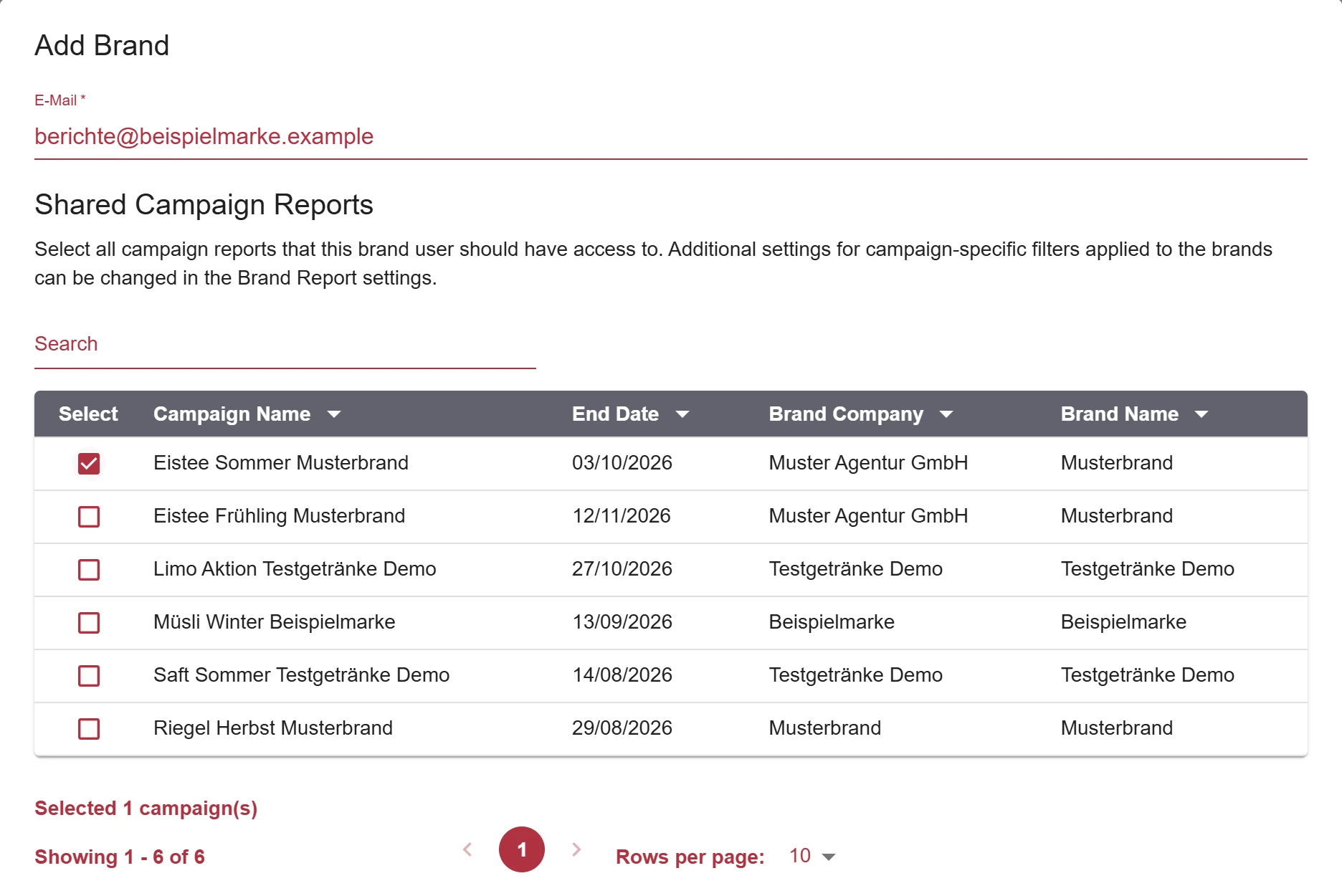
Under Brands, click New Brand User and enter the e-mail address you want to share the campaign dashboards with.
-
In the campaign list, select the campaigns you want to share with this brand user. You can also use the search.
-
Click Save and then Yes to add the brand user.
Edit a brand user
Section titled “Edit a brand user”-
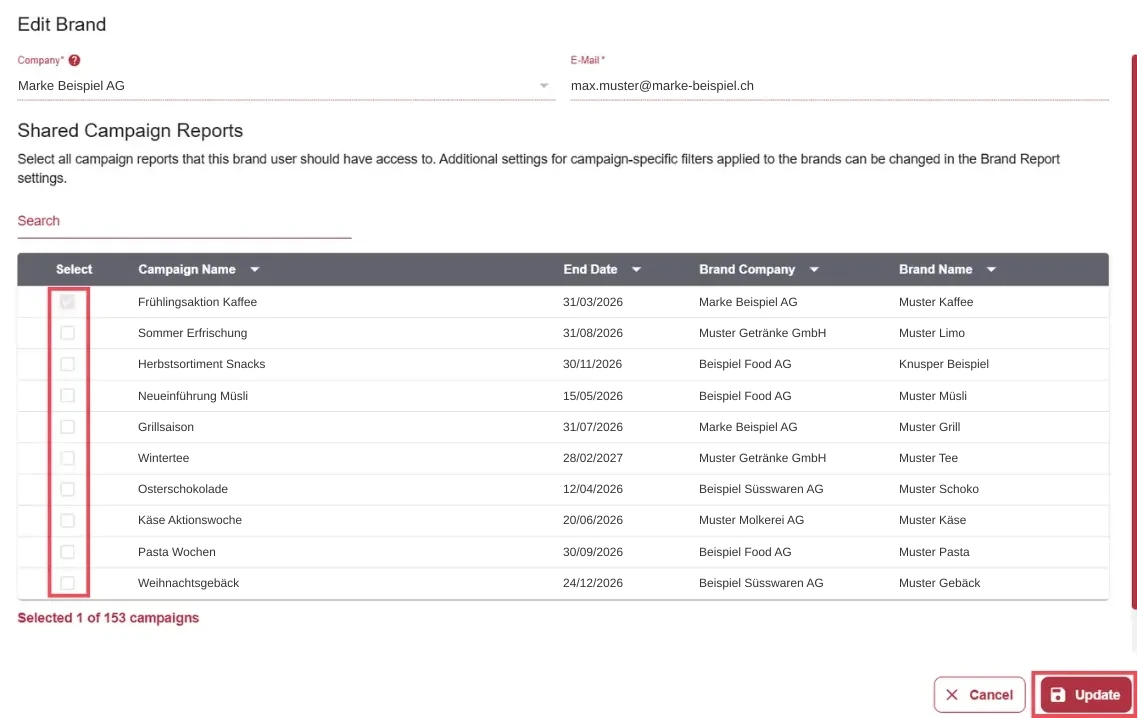
For the brand user you want, click the pencil icon in the Action column.
-
Select or deselect campaigns.
-
Click Update.
Delete a brand user
Section titled “Delete a brand user”-
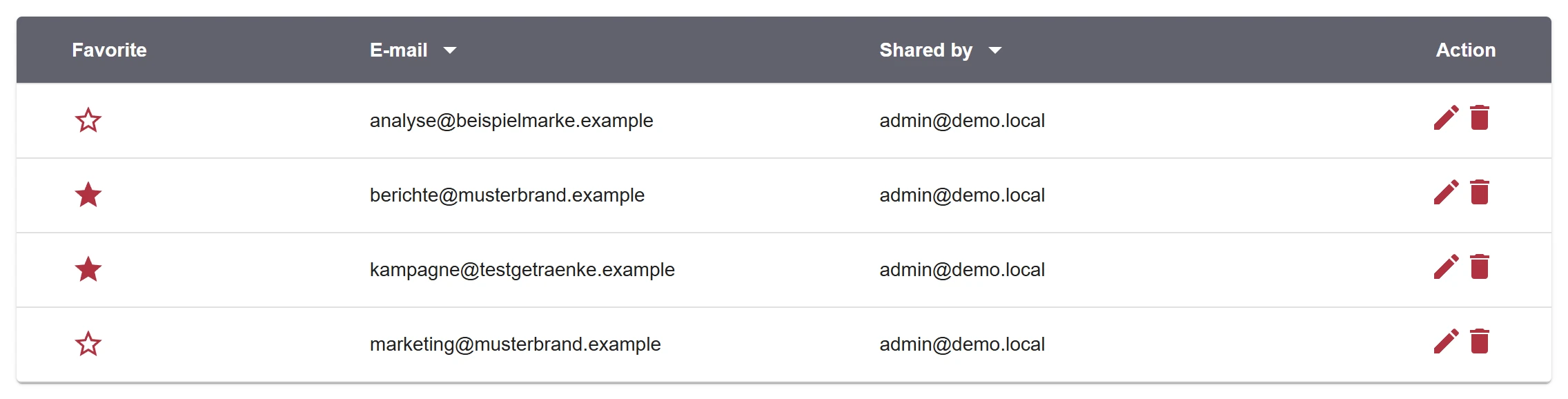
For the brand user you want, click the trash icon in the Action column.
-
Confirm with Yes.
Result
Section titled “Result”In the CAP Explorer, the brand user sees the dashboards of the campaigns you selected for them. When an e-mail address is invited for the first time, it automatically receives an invitation to the CAP Explorer. The brand user then logs in through Brand Access, see Log in.
A deleted brand user loses their account and access to all campaigns that were shared with them.
Help assistant
Answers from the Help Center, no AI