
Clone a contact-based visual
Cloning copies the details of an existing contact-based visual into a new visual.
Before you start
Section titled “Before you start”- You need the permission Contact-based Visuals at the Manage level, see Access and permissions. You can clone visuals of your company, as long as the campaign has not ended.
- Have the video file ready. It is not copied when you clone, even if it stays the same video.
- Which dates are copied depends on the status of the original: start and end for scheduled visuals, only the end for running ones, none for completed ones. All dates must lie within the run time of the campaign.
-
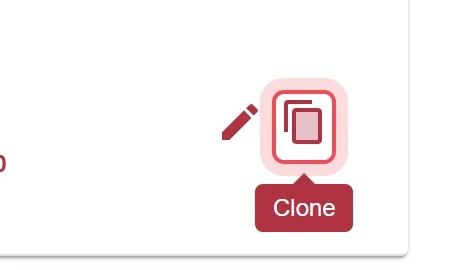
Click the clone icon
In the Contact-based Visuals list, click Clone in the Action column for the visual you want.
-
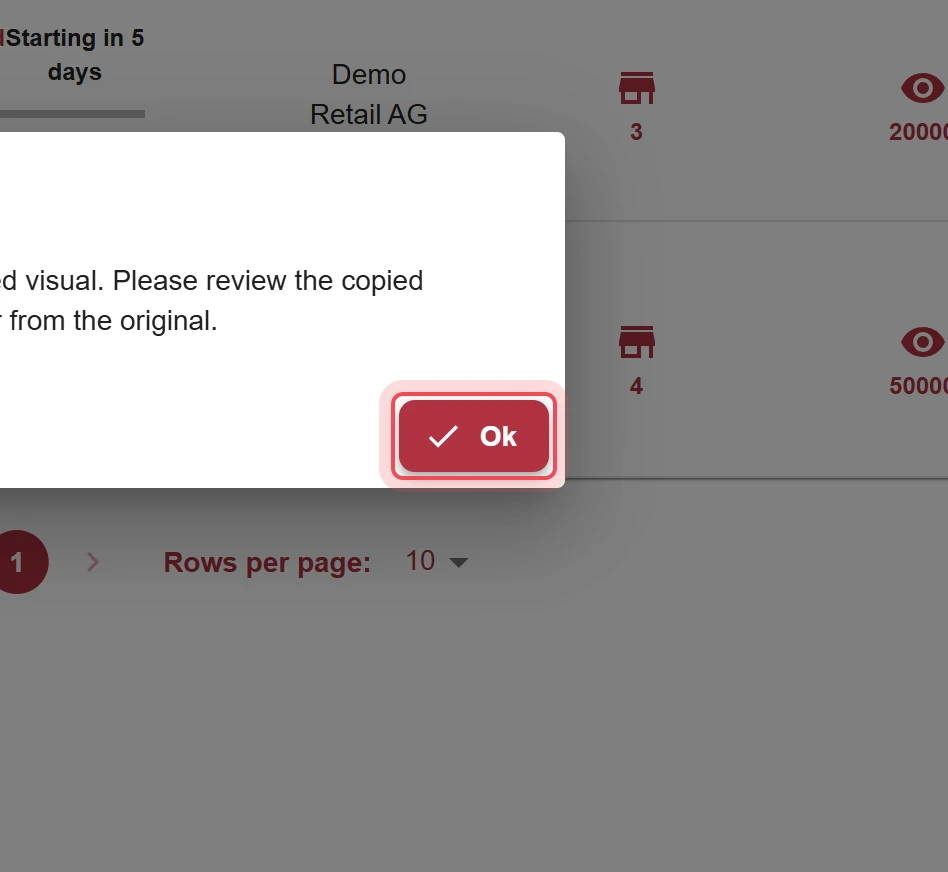
Confirm the notice
The notice says that copied details may differ from the original. Click Ok.
-
Change the run time
The campaign is already selected. Only users of Cyreen and of a tenant see the Owner field. If you see it, it also shows the company of the original. Companies without an active campaign are greyed out («No active campaigns for this company»), and the values in the form depend on the chosen owner, including the campaigns and the stores. New with the upcoming CAP Explorer release. Enter new dates for Start Date and End Date.
-
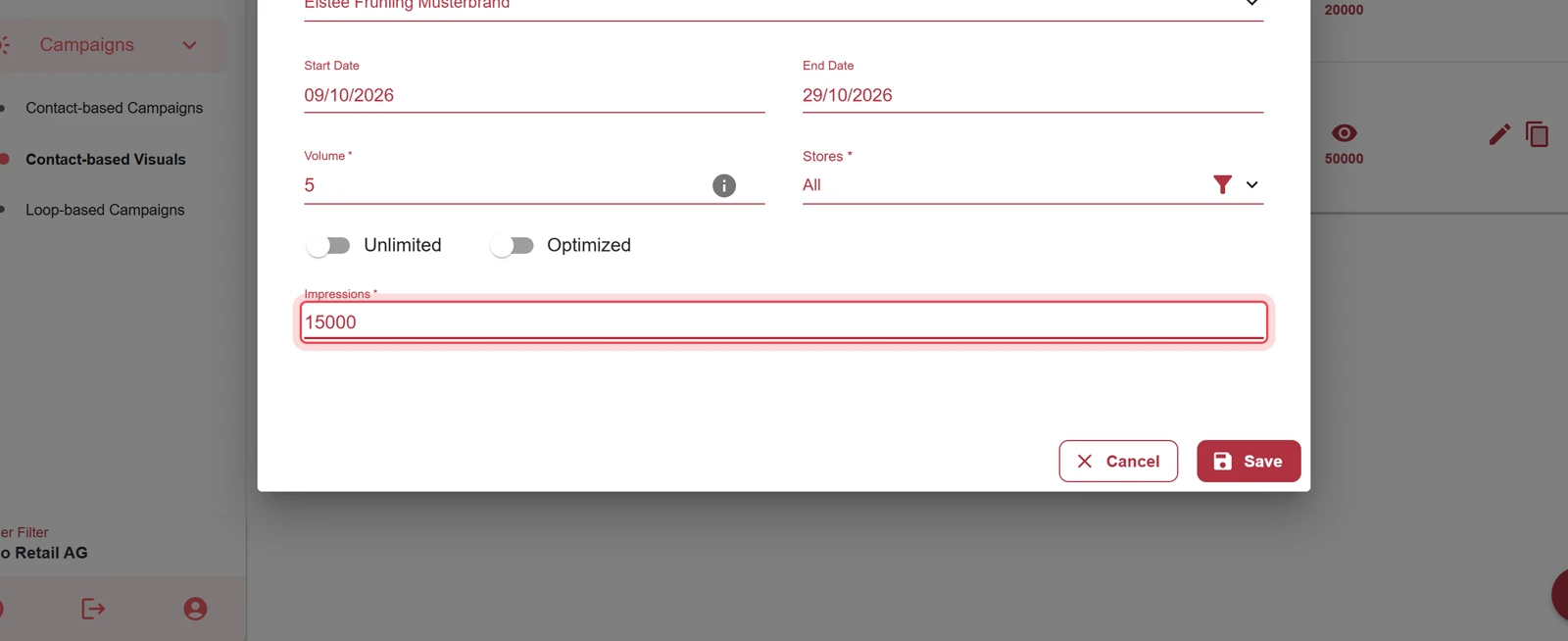
Check impressions
Impressions, Volume, stores and the settings under Optimized are copied, as far as they are still valid. Check the value in the Impressions field and adjust it.
-
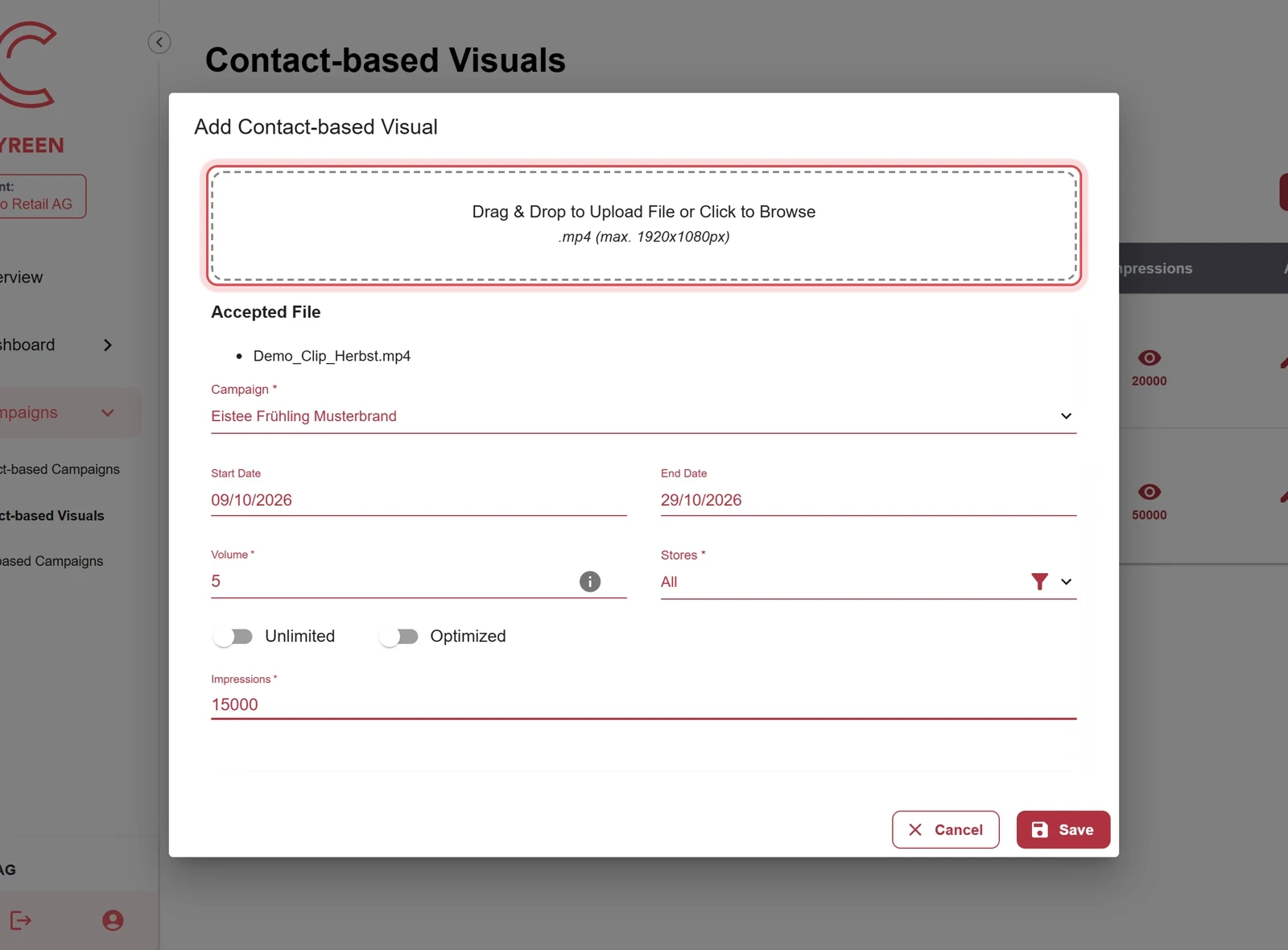
Upload the video
Drag the video file into the field or select it by clicking.
-
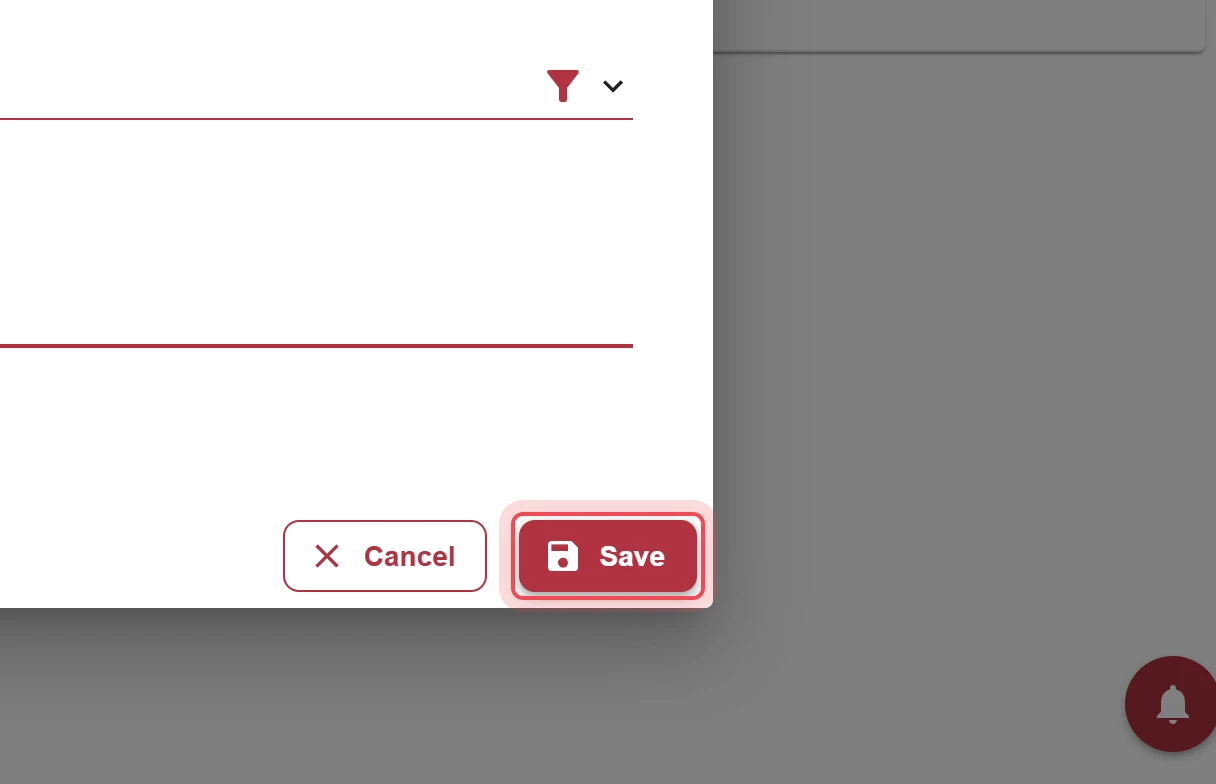
Save
Click Save.
Result
Section titled “Result”The cloned visual appears as a new entry in the list.

Problems?
Section titled “Problems?”The clone icon is missing. You can only clone visuals of your company, as long as the campaign has not ended.
The dates cannot be saved. Start and end must lie within the run time of the campaign.
Watch the whole process as a video (52 seconds)
Help assistant
Answers from the Help Center, no AI