
Check and report a fault
When the C.A.P. system has a fault, first check yourself whether you can solve the problem. If it persists, report it to Cyreen Support. If a service call on site is needed, costs and conditions are as set out in your contract.
Check yourself first
Section titled “Check yourself first”Choose what you see. Each item tells you what you can do yourself.
The screen is black
Possible cause: The power supply is interrupted.
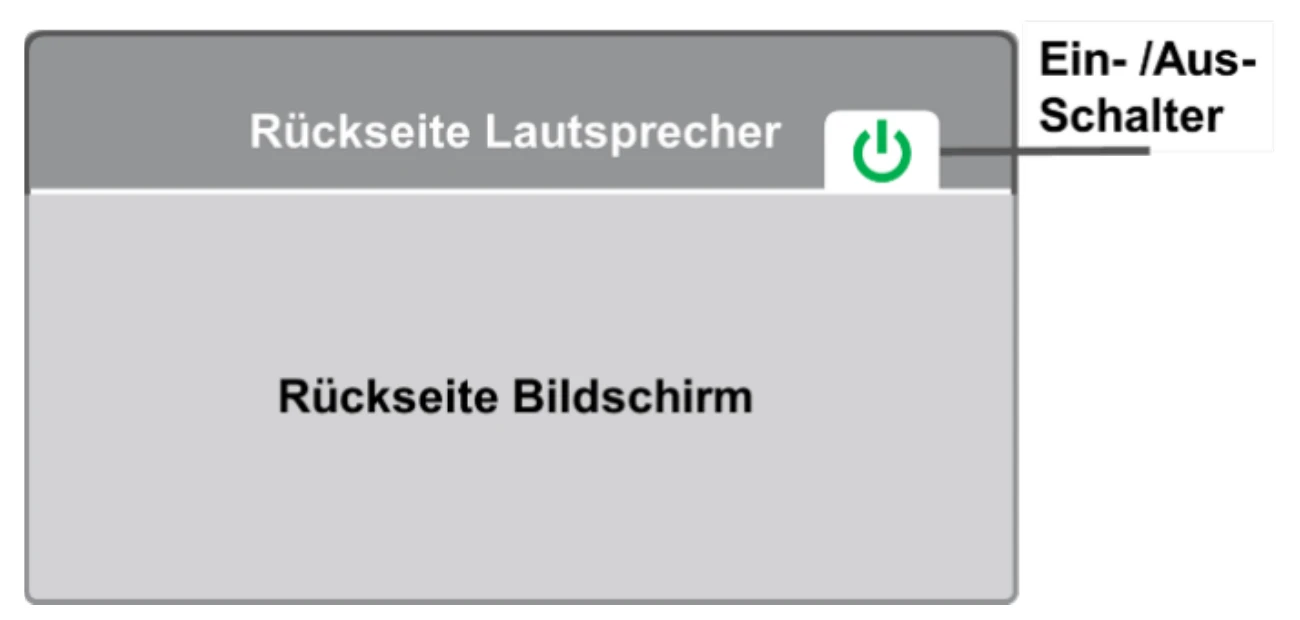
What you do: Switch the screen on. The on/off switch is at the back of the screen, at the top on the back of the speaker. If it stays black, report the fault. Read more
Report the faultThe picture is frozen
What you do: Switch the screen off and on again once. If the picture is still frozen, report the fault. Read more
Report the faultAdvertisement not played with sound
What you do: Advertising in the loop always plays without sound. Sound comes with contact-based advertising, which starts when an RFID-tagged trolley or basket passes the screen. Check that the volume knob on the back of the screen is at the 9 o’clock position. If it is not, turn it to 9 o’clock. Read more
Report the faultThe sound is too loud or too quiet
What you do: Check that the volume knob on the back of the screen is at the 9 o’clock position. If it is not at 9 o’clock, turn it to 9 o’clock. If it is at 9 o’clock, do not adjust it: if the sound is still too loud or too quiet, report it. Cyreen then takes over. Read more
Report the faultAdvertising does not start when a trolley or basket passes
Possible cause: The area reader does not detect the trolley or basket, for example because metal objects block the area in front of it.
What you do: Clear the area in front of the area reader, especially of metal objects. Then test with an RFID-tagged trolley or basket. Read more
Report the faultA device is damaged
What you do: Do not repair, move or remove the device yourself. Take a photo that shows the device number and report the damage. Read more
Report the faultAnother fault on the C.A.P. system
What you do: Describe as precisely as possible what you see, on which device and since when.
Report the faultSwitch the screen on and off
Section titled “Switch the screen on and off”The on/off switch is at the back of the C.A.P. screen, at the top on the back of the speaker.
Changes to the C.A.P. system and ordering hardware
Section titled “Changes to the C.A.P. system and ordering hardware”A refit, changes at the checkout, orders for trolleys and baskets or faulty RFID tags are not a fault, but they go to Cyreen Support. Communicate them in the contact form, topic «Changes to the C.A.P. system». There you also communicate quiet hours and opening hours. New RFID tags, also for changed trolleys or baskets, you order under «Order hardware». More in Changes in the store.
Not a topic for technical support
Section titled “Not a topic for technical support”These topics go to a different place, which is faster.
| Topic | Who to contact |
|---|---|
| Content on the screens should be changed | Content is planned in CAP Explorer, not in the store and not by Cyreen Support. If you have your own CAP Explorer access, change the content there. Otherwise contact your internal retail media project contact. Read more |
| A device that is not part of the C.A.P. system has a fault | Cyreen Support only looks after the devices of the C.A.P. system. Contact the team in your company that is responsible for this device. |
Report a fault
Section titled “Report a fault”-
Fill in the report
The fastest way is online in the contact form with the topic «Fault on the C.A.P. system». It asks for all the details needed. On paper, use the incident report form from the Download Center.
-
Send it to Support
You send the online form directly. Send the incident report form by e-mail to support@cyreen.de.
-
Wait for the reply
Cyreen checks the problem and gets back to you promptly with the next steps.
What goes into the report
Section titled “What goes into the report”Cyreen Support needs these details, online and on paper.
| Detail | What you enter |
|---|---|
| Store name | Name of the store |
| Address | Street, ZIP code and town |
| Device number | The clearly visible number on the device, on the C.A.P. screen the large number on the back |
| Time | Date and time when you noticed the problem |
| Description | Precise description of the problem |
| Frequency | When the problem occurs and whether you have already reported it |
| Checks done so far | What you have already checked, see above |
| Photos | Clear view of the device, with device number and status lights |
| Contact details | Name, phone number and when you can be reached |
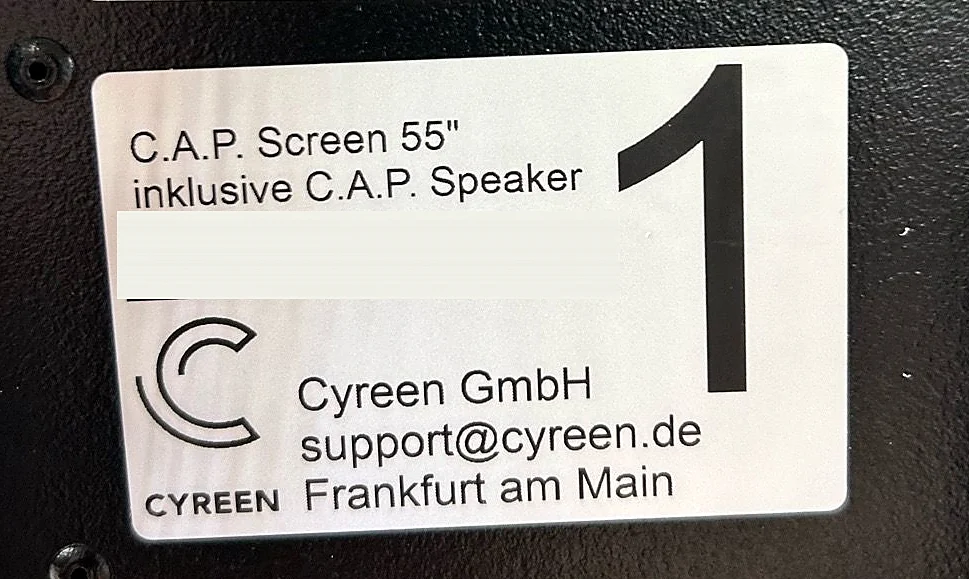
Attach photos directly in the online form (up to five files), or to the e-mail with the incident report form.
Help assistant
Answers from the Help Center, no AI